
G-SYNC 101: Control Panel


G-SYNC Module

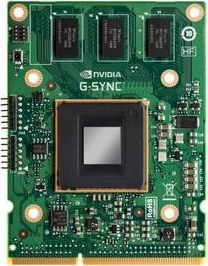
The G-SYNC module is a small chip that replaces the display’s standard internal scaler, and contains enough onboard memory to hold and process a single frame at a time.

The module exploits the vertical blanking interval (the span between the previous and next frame scan) to manipulate the display’s internal timings; performing G2G (gray to gray) overdrive calculations to prevent ghosting, and synchronizing the display’s refresh rate to the GPU’s render rate to eliminate tearing, along with the delayed frame delivery and adjoining stutter caused by traditional syncing methods.

G-SYNC Demo

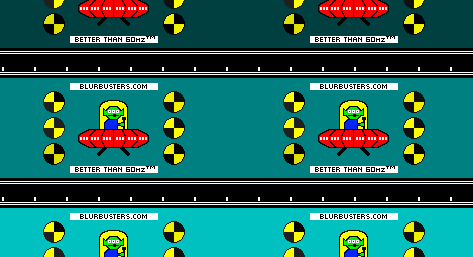
The below Blur Busters Test UFO motion test pattern uses motion interpolation techniques to simulate the seamless framerate transitions G-SYNC provides within the refresh rate, when directly compared to standalone V-SYNC.

G-SYNC Activation

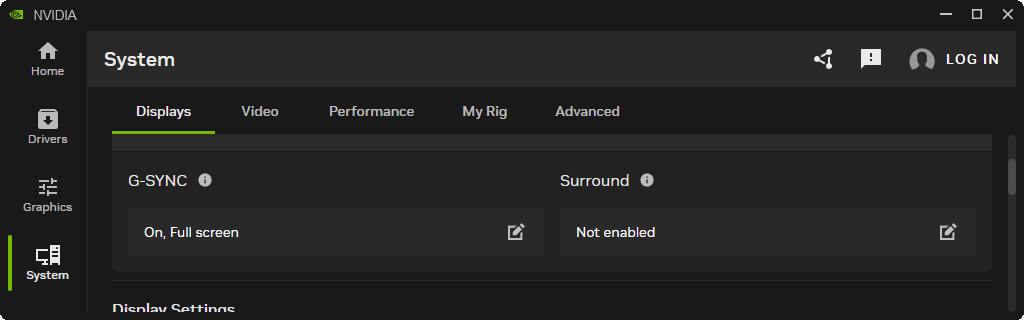
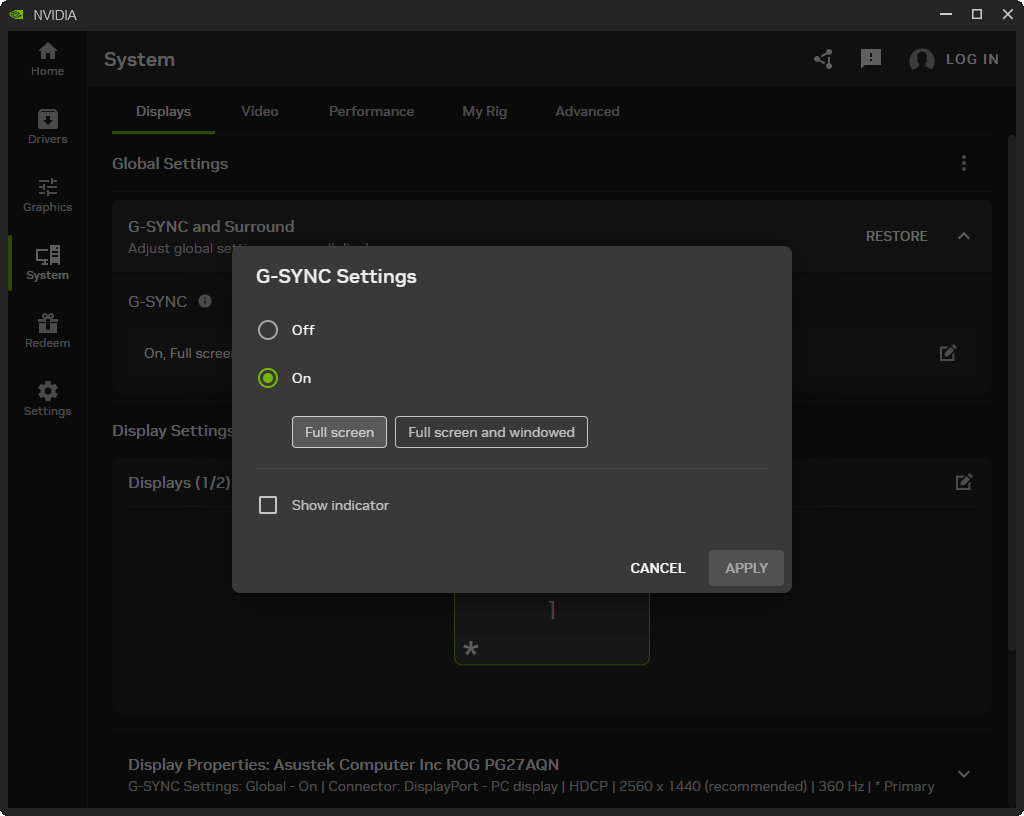
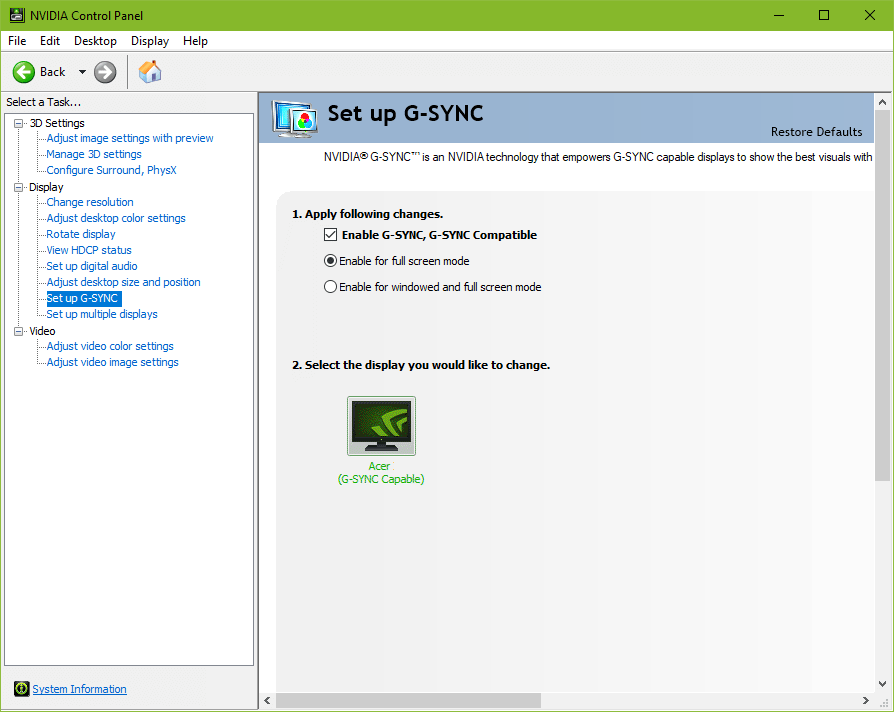
“Enable for full screen mode” (exclusive fullscreen functionality only) will automatically engage when a supported display is connected to the GPU. If G-SYNC behavior is suspect or non-functioning, untick the “Enable G-SYNC, G-SYNC Compatible” box, apply, re-tick, and apply.

Blur Buster's G-SYNC 101: Control Panel

G-SYNC Windowed Mode

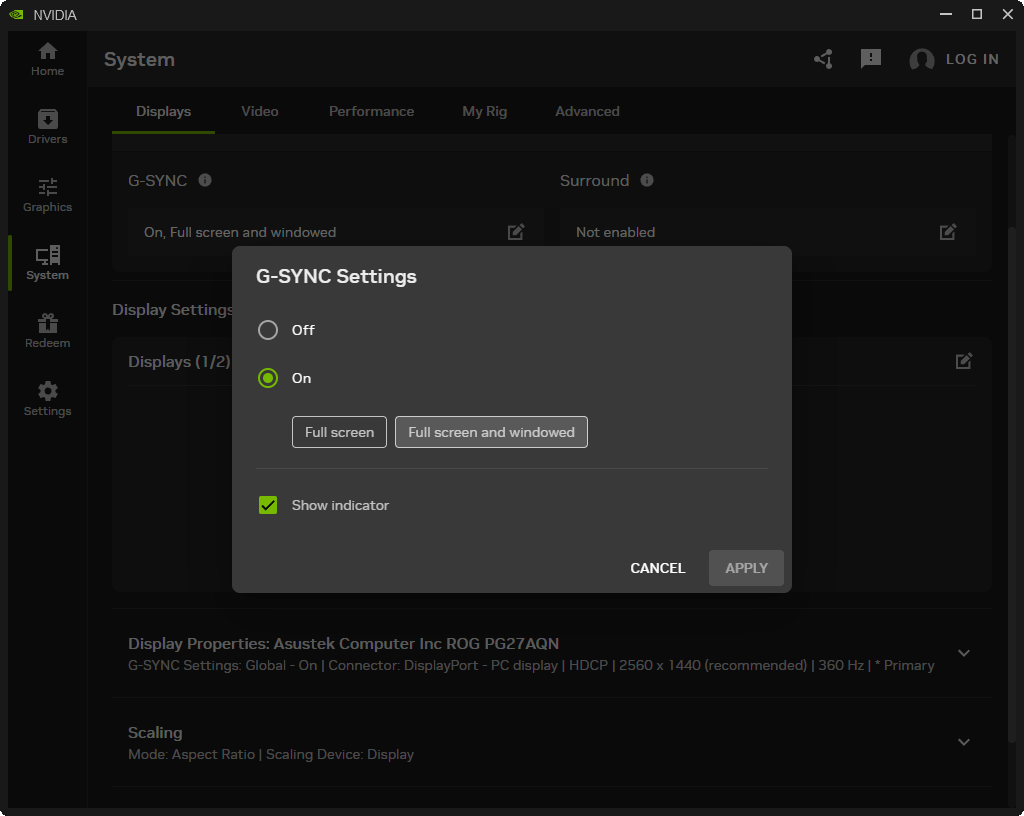
“Enable for windowed and full screen mode” allows G-SYNC support for windowed and borderless windowed mode. This option was introduced in a 2015 driver update, and by manipulating the DWM (Desktop Windows Manager) framebuffer, enables G-SYNC’s VRR (variable refresh rate) to synchronize to the focused window’s render rate; unfocused windows remain at the desktop’s fixed refresh rate until focused on.

G-SYNC only functions on one window at a time, and thus any unfocused window that contains moving content will appear to stutter or slow down, a reason why a variety of non-gaming applications (popular web browsers among them) include predefined Nvidia profiles that disable G-SYNC support.

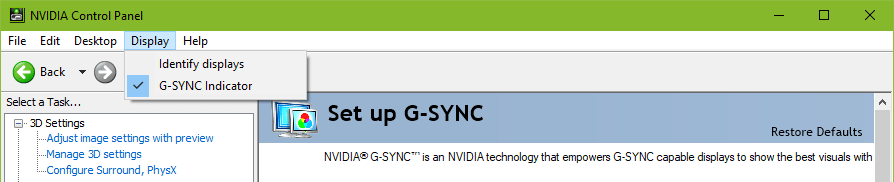
Note: this setting may require a game or system restart after application; the “G-SYNC Indicator” (Nvidia Control Panel > Display > G-SYNC Indicator) can be enabled to verify it is working as intended.
G-SYNC Preferred Refresh Rate

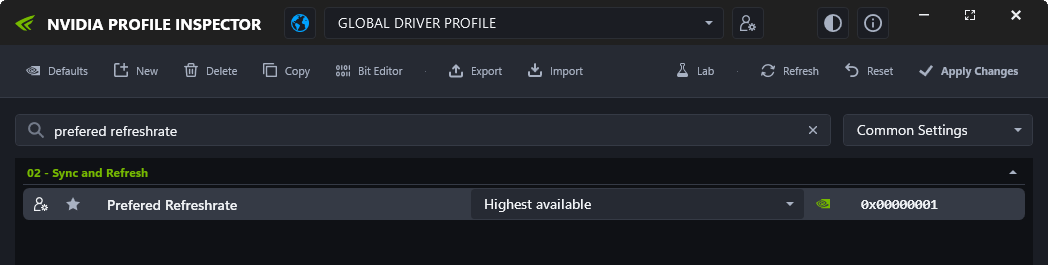
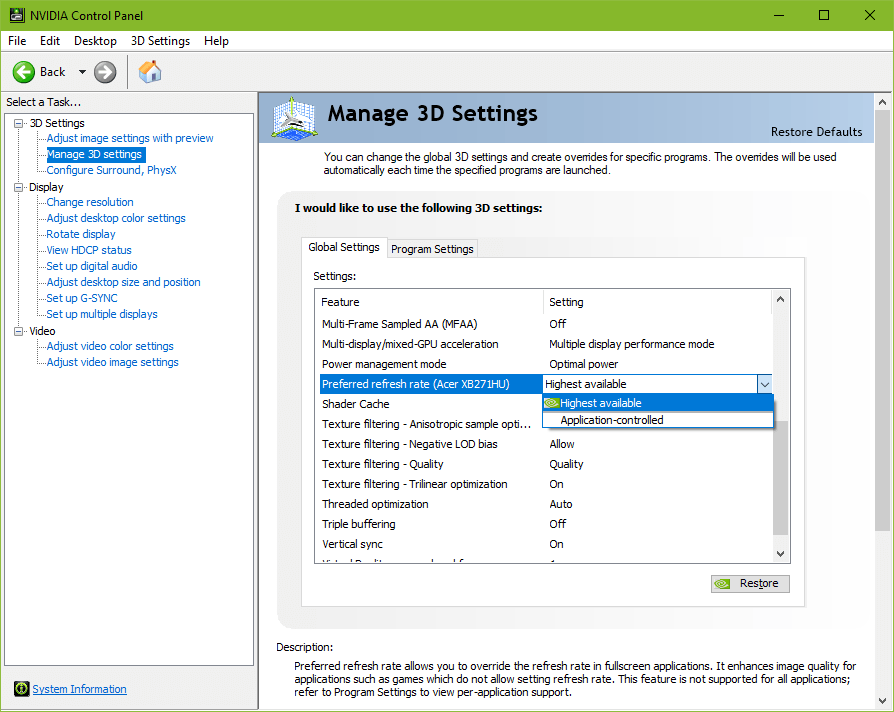
“Highest available” automatically engages when G-SYNC is enabled, and overrides the in-game refresh rate selector (if present), defaulting to the highest supported refresh rate of the display. This is useful for games that don’t include a selector, and ensures the display’s native refresh rate is utilized.

“Application-controlled” adheres to the desktop’s current refresh rate, or defers control to games that contain a refresh rate selector.

Note: this setting only applies to games being run in exclusive fullscreen mode. For games being run in borderless or windowed mode, the desktop dictates the refresh rate.

G-SYNC & V-SYNC

G-SYNC (GPU Synchronization) works on the same principle as double buffer V-SYNC; buffer A begins to render frame A, and upon completion, scans it to the display. Meanwhile, as buffer A finishes scanning its first frame, buffer B begins to render frame B, and upon completion, scans it to the display, repeat.

The primary difference between G-SYNC and V-SYNC is the method in which rendered frames are synchronized. With V-SYNC, the GPU’s render rate is synchronized to the fixed refresh rate of the display. With G-SYNC, the display’s VRR (variable refresh rate) is synchronized to the GPU’s render rate.

Upon its release, G-SYNC’s ability to fall back on fixed refresh rate V-SYNC behavior when exceeding the maximum refresh rate of the display was built-in and non-optional. A 2015 driver update later exposed the option.

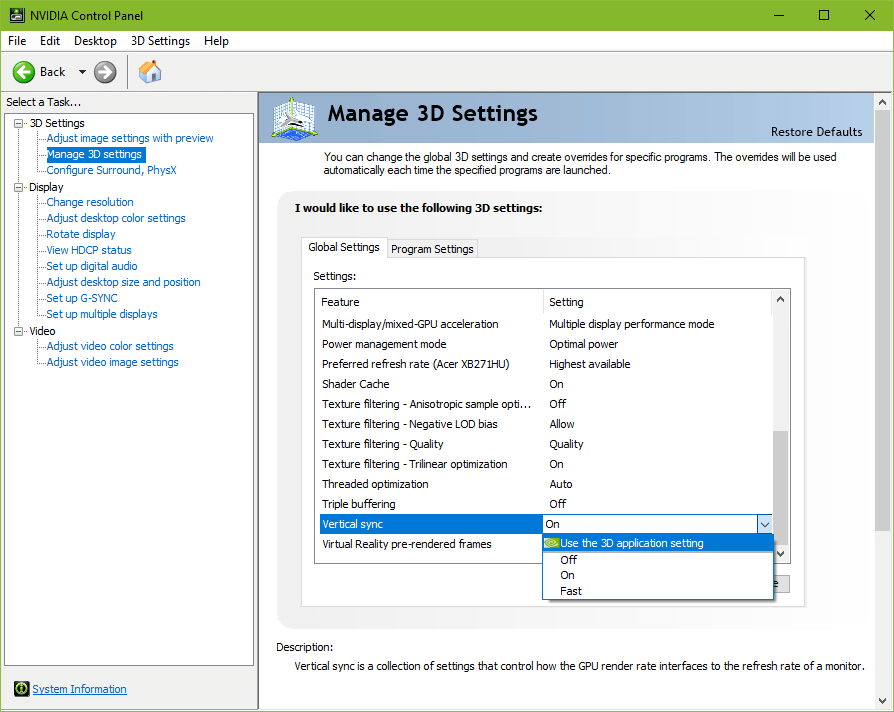
This update led to recurring confusion, creating a misconception that G-SYNC and V-SYNC are entirely separate options. However, with G-SYNC enabled, the “Vertical sync” option in the control panel no longer acts as V-SYNC, and actually dictates whether, one, the G-SYNC module compensates for frametime variances output by the system (which prevents tearing at all times. G-SYNC + V-SYNC “Off” disables this behavior; see G-SYNC 101: Range), and two, whether G-SYNC falls back on fixed refresh rate V-SYNC behavior; if V-SYNC is “On,” G-SYNC will revert to V-SYNC behavior above its range, if V-SYNC is “Off,” G-SYNC will disable above its range, and tearing will begin display wide.

Within its range, G-SYNC is the only syncing method active, no matter the V-SYNC “On” or “Off” setting.

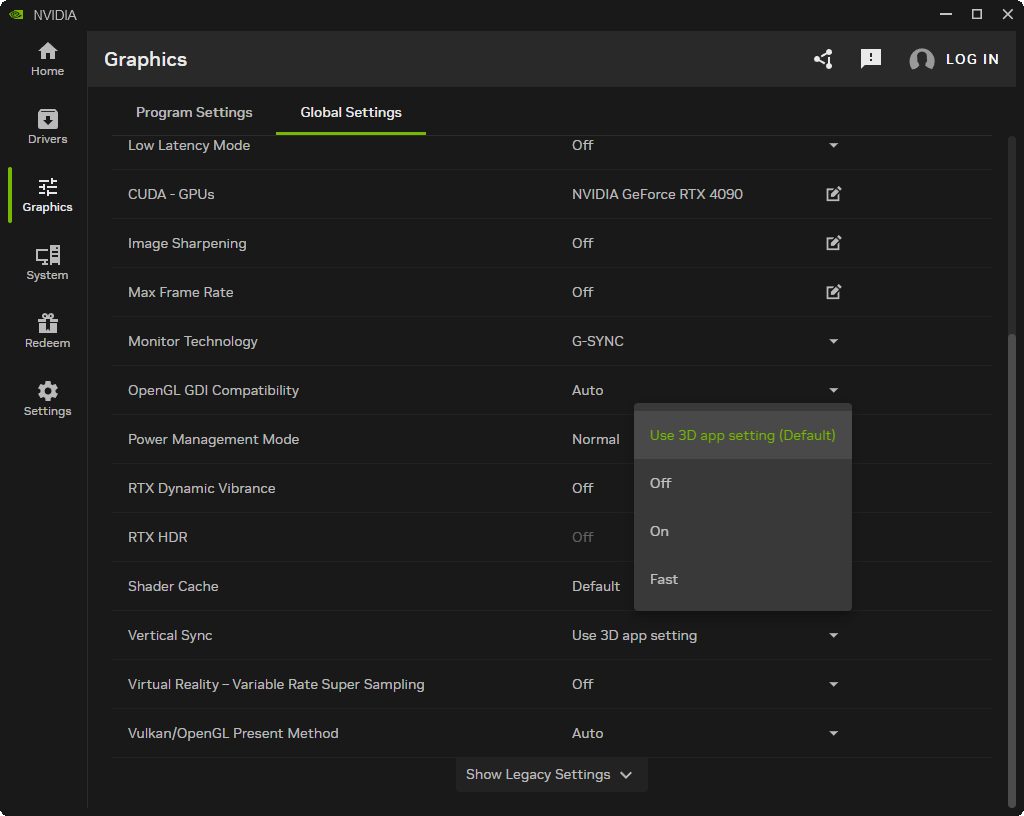
Currently, when G-SYNC is enabled, the control panel’s “Vertical sync” entry is automatically engaged to “Use the 3D application setting,” which defers V-SYNC fallback behavior and frametime compensation control to the in-game V-SYNC option. This can be manually overridden by changing the “Vertical sync” entry in the control panel to “Off,” “On,” or “Fast.”


3774 Comments For “G-SYNC 101”

This site uses Akismet to reduce spam. Learn how your comment data is processed.

Sort by:   newest | oldest | most liked
sc719
Member
sc719

I play competitive COD, on a 280Hz OLED, with average frames 300, 1% lows 220 and 5% 250…

To summarize theres basically 3 options you are suggesting?

1. Lowest tear free: VRR + Vsync + Reflex/AntiLag (or turn this off and have in game limit)

2. Absolute lowest response time: Uncapped + Reflex/AntiLag

3. Last: Capped

So the 1st option at worst it adds 1-2ms of delay from your results?

When I run the 1st option with Anti Lag, it goes to exactly 280 with 90% usage when idle but will go below throughout the game, is that an issue? I think in the comments you suggested either use reflex or manually set limit, but if i use reflex it is not -3 below monitor like the manual limit, however will dip below 280 throughout the game

Just wondering if i have this right here, thanks

fishman099
Member
fishman099

Hey all, just wanted to post to say thanks for the guide. Implemented as described a long time ago (took several reads lol) but still works superbly well today.

Wanted to also post for those newly discovering this guide.

My set up:

LG Oled B3
Windows 11 (but worked on 10)
RTX4070ti super
Ryzen 5700x3d
32gb ram
2xNvMe

I have my control panel set to:

Gsync enabled for both full screen and borderless
Desktop/game res: 1440p/120hz
LLM: on
Max frame rate: 114fps
Gsync: on
Vsync: on

In game:

Vsync: off

From the getgo, I know gsync engages as the LG (when in game mode) shows the gsync symbol.

So I’m a nerd, been gaming for years but was a total noob when it came to VRR/Gsync. I either never had the kit that allowed me to even experiment or I read basic guides online that lacked context or understanding of how it worked.

However as I’ve upgraded my rig THIS guide has been a godsend.

I think it’s worth saying that this ‘process’ is NOT a magic bullet as jorimt and the mods state several times. It doesn’t make frames or increases FPS BUT what it does do, for me, is allow my games to run at a FPS below my refresh rate that minimises stutter and maximises smoothness.

Also worth bearing in mind is the point that is made repeatedly, that you may, at some points, have to compromise on either resolution OR eye candy. My 4070ti super is potent but I run EVERYTHING at 1440p. Some would say compromise, but I disagree. A relatively consistent 1440p@120hz with plenty of eye candy is much more preferable than a constant 4k@60hz but lowered settings for me (YMMV).

Similarly, in my experience, to gain the most advantage from VRR/gsync frame rates need to be as much past 60 as possible – hence the 1440p/120hz decision.

My test games were always Sensuas Saga (Hellblade2) and Alan Wake 2 primarily because they played v.nicely with Gsync and are v.graphically challenging.

I use both DLSS and/or Frame Gen if required when gaming and tbh it is a flawless experience when coupled with VRR/Gsync. Id hit 90- 114fps on AW2 but because of Gsync it would always run lovely and smooth. Also I’m quite sensitive to input latency but having followed this guide I can honestly say I’ve not noticed any significant increase!

Anyway apologies for the wall of text, thought it might help peeps who are new to this to see that even a Gsync novice can make this work as intended. Just temper those expectations and follow the guide 👍

Ps thanks to jorimt for effort in putting this guide together – awesome!!

rubbahbandman
Member
rubbahbandman

One other thing, LLM should be disabled.

rubbahbandman
Member
rubbahbandman

I may have misunderstood your comment, but I think your settings are not quite optimal based on the g-sync guide.

First, it is a minor difference, but there really isn’t a need to cap your max framerate to 114fps on a 120hz panel. You might as well increase it to 117fps.

Secondly, this is a bigger issue, but g-sync should not be enabled for borderless/windowed mode. This can hurt performance by 3-5%+ which isn’t the end of the world, but why take the performance hit for such a minor benefit. Maybe if you are a streamer frequently going between windows, but the guide recommends this setting remain unchecked.

fishman099
Member
fishman099

@rubbahbandman – thanks for taking the time to respond 🙂

Fair points made but for clarity:

1. I engage LLM as some games don’t have reflex. My understanding of the guide jorimt has created is, if a game does have reflex and I enable it then it disengages the LLM setting in NVCP anyway? Also It’s worth noting that, as a rule, I don’t engage reflex when I set up my settings in game. In my experience there have been occasions where it causes more issues 8n game than it solves. However if I engage frame gen then the game will ordinarily auto engage reflex anyway.

2. Setting my refresh -6fps from my 120hz, for me, ensures that I never go above my refresh rate thus disengaging gsync. When I first set up using this guide I was set at 117/120 but occasionally my frames would bounce up to and sometimes over the 120? As per the guide I felt it better to guarantee that gsync stayed engaged by definitively setting it low enough to never breach my 120hz.

3. Borderless/windowed mode. I rarely play older stuff – sometimes games from the recent past. Where I am able, in those games, I select fullscreen this ensuring gsync is engaged. Conversely in most modern games I’ll select either fullscreen or borderless/windowed. As Jorimt states, the modern riff on this display selection in games means that gsync remains active, with little, if any, performance hit. (The better implementation of window/borderless was also a reason I moved over from W10 to W11).

Anyway, thanks for the input. It’s good to explore our settings and discuss them as, for me, it allows for better clarity on the subject!!

For better or worse I’m lazy so whilst I acknowledge that there are settings that should be engaged/disengaged per game I find it easier to set in NVCP and forget lol. I’ve yet to see a case in 18+ months where I’ve had to tweak anything but YMMV 🙂

rubbahbandman
Member
rubbahbandman

@fishman099

Thanks for the clarification. I see where you’re coming from now and think you have a better understanding of the guide than myself. I leaned a bit too hard on some outdated information.

Out of curiosity, how did you notice your frames bouncing over 120 and which GPU model are you using? I have a 5090 and may take a more similar approach similar to yours in case my gsync is also disengaging at times (even with a 117 fps cap).

As for the borderless/windowed mode, I did not realize this was more of a legacy issue, and similarly, LLM seems to function well now (under GPU limited conditions), so this is good for me to know.

Thanks again for your response!

fishman099
Member
fishman099

@rubbahbandman – Jorimt has answered your queries – better than I could 🤣🤣

But as layman I sorta played around with the frame rate limiter. I can’t remember if it was Jorimts guide or something I read elsewhere but my logic was that the difference (for me) between 117 and 114 was unmeasurable in real time terms – so thought I might as well ensure that the FPS doesn’t bounce?

In relation to Jorimts comment – I do actually use afterburner and understand that it’s entirely possible I was getting fakes positives but I also found it was potentially happening on a game by game basis!! Locking it to 114 just allowed me to not worry 😀😀

Btw – love the 5090 bro – what a monster of a gpu that is!!!

ToKc1n
Member
ToKc1n

Good evening, I’ve been writing comments for ages, but I’m still struggling to figure it out. Perhaps it’s just my personal preference. I have a 180Hz monitor, 5070 RTX, and 13600K. How can I properly configure the G Sync+ Vidia panel with a frame rate cap?
The problem is that games don’t support 180Hz. Take RDR 2 or Black Ops 6, for example, and they jump from 123 to 156.
I’m not entirely sure how to track trends or if it makes sense. When I turn on low latency to ultra or on, I get micro-freezing and a sluggish feeling. If I just enable G Sync in the panel and nothing else, then in GTA 5, I get 0.1-0.2 ms latency and FPS spikes from 300 to 500, but if I set the FPS cap to 177 or 172, I get micro-stuttering.

fishman099
Member
fishman099

I’m curious what res/graphics settings your running at?

Haven’t played either game for awhile but if the frame rate is jumping between 123 to 156 and your monitors refresh is 180hz then I assume your know where near hitting that.

As a novice (someone who’s used this guide successfully) I’ve just posted my settings but I run:

I have my control panel set to:

Gsync enabled for both full screen and borderless
Desktop/game res: 1440p/120hz
LLM: on
Max frame rate: 114fps
Gsync: on
Vsync: on

In game:

Vsync: off

If I’m able I also set NO in game frame limiter. In other words as my max refresh is 120hz I either select that is available or unlimited and let Gsync/NVCP do the rest.

The control panel settings, as far as I am concerned, are set and forget. When I do a fresh windows install I set the NVCP to those above and then every game I play turn off vsync immediately and either pick my monitors native refresh or unlimited.

Any game you play will allow you to select your native monitor refresh rate (if full screen). However I usually run window borderless which I understand to default to your desktop resolution/refresh anyway.

Have a play with my settings, see if they work as they are 1:1 with this guide. As I said in my post, this guide is amazing and does work. The hard part, for me, was trying to understand what each ‘setting’ did. Remember you can’t break anything and at worst have to reset your NVCP settings default 👍

ToKc1n
Member
ToKc1n

Thanks for your reply and responses.
Unfortunately, this setup only makes things worse. It might be because of Adaptive Sync in the monitor; I had it fully enabled, but the G-Sync setting disappears.
For example, if I do something simple, I have standard sync enabled on the monitor, vertical sync in the panel, and games disabled. Using the Riva tuner, I estimate 120 fps, which holds up, but I thought games would be heavy and lag. If I don’t limit the frame rates and leave the monitor at 180 fps, the frame rates seem lower, but they go past the threshold and rise to 181-182 Hz. I think G-Sync doesn’t work at all in that case.
If I turn low-latency mode on or ultra in the control panel, nothing changes except for a frame rate drop of 3-4 Hz. And in the game itself, if I have Nvidia Reflex, I also didn’t notice a difference between on or ultra + boost.

petran79
Member
petran79

I have an Asus Rog p348q monitor at 100 hz. Set frame rate cap at 97. I notice an issue with the updated Vulkan renderer in some applications. In Snes9x emulator for example, the games run at 48 fps instead of 60. I have to set Vulkan/OpenGL present method to Native.
While on Retroarch, on top of that step, I also have to enable “Application controlled refresh rate” option, same for Dolphin emulator where I have to disable max frame rate.

Recently I noticed a 2d game where I had to set nvidia panel frame rate to 120 in order for game to run at 60 fps instead of 48.

Razvan Badaluta
Member
Razvan Badaluta

Hello!

Without a fps cap i am getting around 800 fps in fortnite creative but when i turn v sync on( even in the Nvidia apps) i am getting a limit at 438 or sometimes 425 ( i have the xg27aqdpg 500 Hz monitor) i want a fast frametime and fps as close as I can get to the monitor refresh rate but i do not want tearing. I tried playing around with Nvidia low latency but i did not notice any difference. All this happened with g sync on. I did something wrong? any tips?

wpDiscuz