
 Menu
Menu
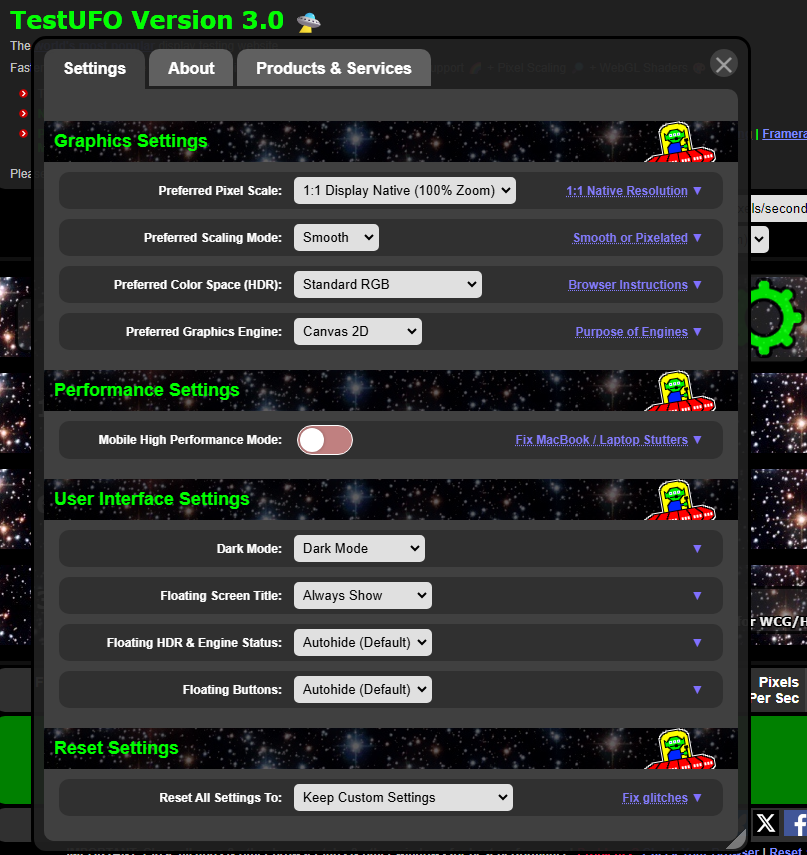
Click the green gear icon in any TestUFO screen, to show the global TestUFO Settings screen.

Preferred Pixel Scale Setting
You can now specify a preferred scaling factor, including native resolution, or a custom zoom percentage. Some tests will override this setting (e.g. Chroma Subsampling Test) while most TestUFO screens will automatically use the Preferred Pixel Scale Setting.
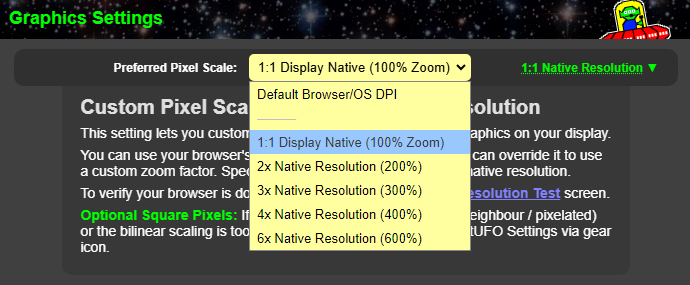
The below TestUFO embed will stay at 1:1 native resolution (on most systems) regardless of your currently configured browser zoom & operating system DPI setting.
TestUFO’s new zoom override feature is very useful for many display test patterns that require deterministic 1:1 native resolution such as Chroma Subsampling Test – 4:2:2 vs 4:4:4.
Preferred Scaling Mode Setting
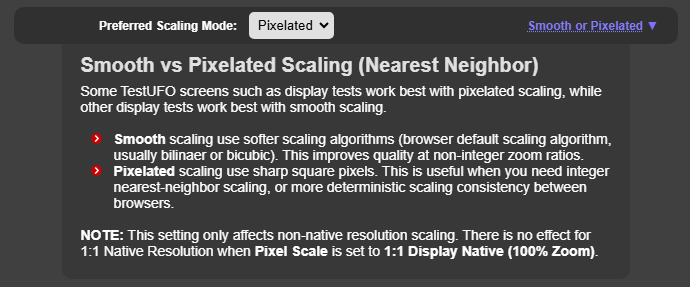
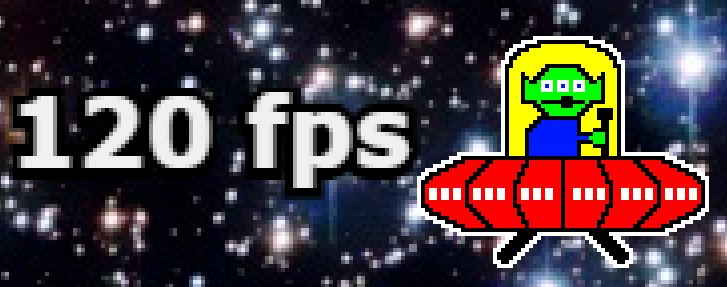
You can use smooth scaling or pixelated scaling modes. This applies when using scaling factors above 100%.
Preferred Color Space Setting
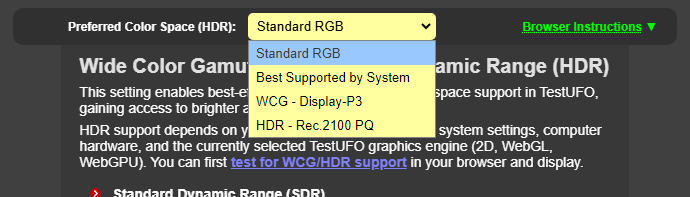
Choosing this setting gains access to additional color spaces that TestUFO supports. Since they use newly introduced web browser features, these color spaces require browser configuration to access, and instructions are also provided in TestUFO HDR Test.
Preferred Graphics Engine
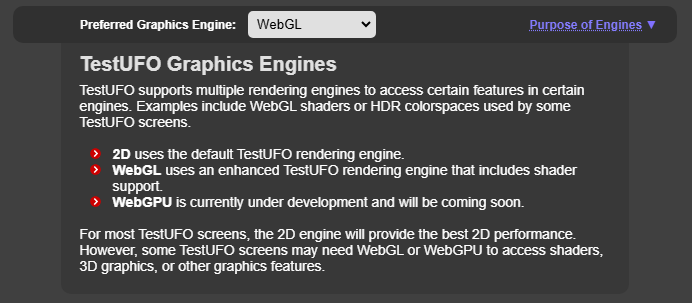
TestUFO now supports multiple graphics engines. Two graphics engines are now available, 2D and WebGL is available today, and support for a third graphics engine (WebGPU) is coming soon.
Some TestUFO screens such as TestUFO CRT Simulator will automatically choose the WebGL engine, while other screens can render in any of the preferred graphics engines.
Mobile High Performance Mode for MacBook/Laptops
This is a workaround for TestUFO stuttering on MacBooks and other laptops. Enabling this setting causes TestUFO to run much more smoothly. This setting is designed to perform best in Chromium browsers, however, it may also help Safari to an extent. Make sure you disable “Prefer Page Rendering Updates Near 60fps” (instructions).
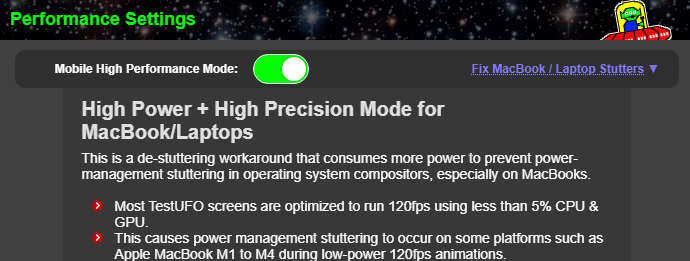
NOTE: If you have a gaming laptop with a dual GPU, such as an internal GPU and an NVIDIA GPU, we recommend configuring your browser to your high performance GPU. For Chrome/Edge, enter chrome://flags/#force-high-performance-gpu in your URL.
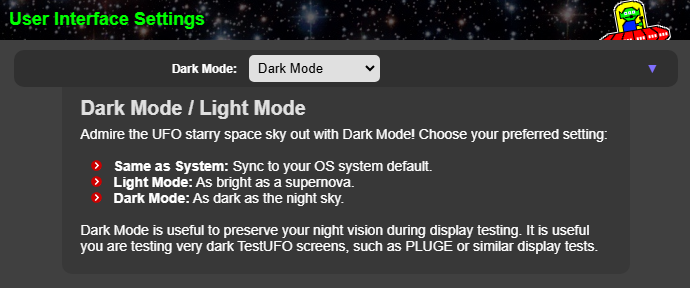
Dark Mode
TestUFO now lets you force Dark Mode, Light Mode or match your system.
Autohide UI Elements
You can configure multiple elements to autohide, or stay visible or hidden.
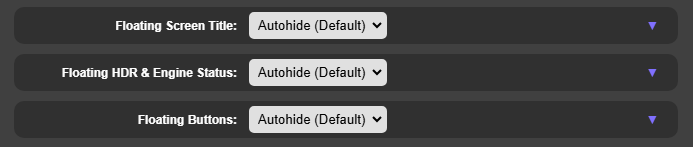
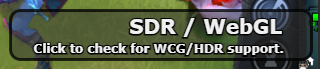
These configure the visibility of the various TestUFO overlay elements:


Credit for During Demos and Conventions
When giving credit to TestUFO, we suggest that “Floating Screen Title” be set to “Always Show” to give credit to to TestUFO.