

 Menu
Menu
For XL2720Z monitors, firmware Version 2 or later is required for Blur Busters Strobe Utility.
BenQ gave us explicit permission in year 2014 to post these firmware upgrade instructions:
NOTE: These steps are only necessary for Version 1 of XL2720Z
A) Either get a new BENQ XL2420Z or XL2720Z with V2+ Firmware preinstalled;
B) Or send into BENQ for free upgrade. See BENQ America press release for info;
C) Or install via Linux with no hardware tools, see forum thread;
D) Or manually install the V2 Firmware yourself from Windows, by following the instructions below.
Deciding if the upgrade worth it? Check out “…it’s like a totally new screen!“.
DIY Firmware Upgrade Instructions:
- Download Firmware from
gaming.benq.com/downloads
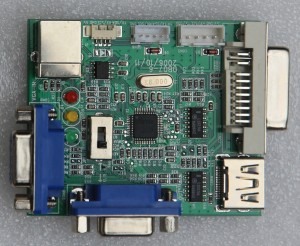
Alternate Link: download Version 5 via SkyDrive - You need to purchase an MSTAR ISP upgrader (easy) or build your own (advanced). The easy unit connects to the computer via USB, and connects to the monitor via VGA.
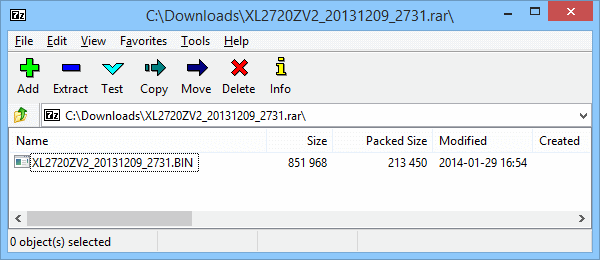
- Open the .RAR File you downloaded from BENQ. (Use 7-Zip to open .RAR files)
Next, Unzip (copy) the .BIN file inside the .RAR, to a temporary folder on your system.
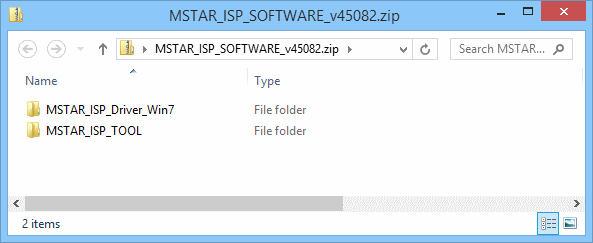
- Download the firmware installer software: MSTAR ISP SOFTWARE v45082.zip

- Unzip the MSTAR ISP SOFTWARE file. There will be drivers, and the installer tool.
- First, connect a USB cable into the MSTAR ISP device, and plug it into your PC.
Next, connect a VGA cable into the MSTAR ISP device (use the VGA port as pictured below), and plug the other end of the VGA cable into your BENQ Z-Series monitor.
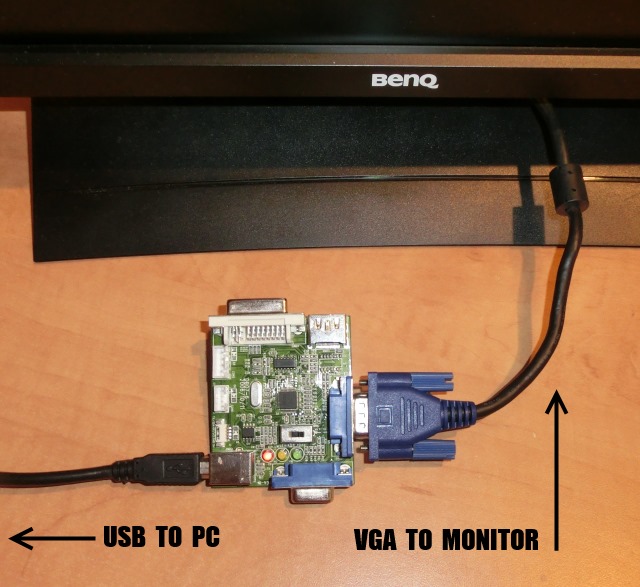
NOTE: You may continue to keep your monitor connected to your PC via DVI or DP cable. It is safe to continue using the same monitor you will be upgrading. - If you are manually prompted for the location of drivers, point it to the drivers within the folder that you unzipped in step 5.
- Now run ISP_Tool.exe inside the MSTAR_ISP_TOOL folder:
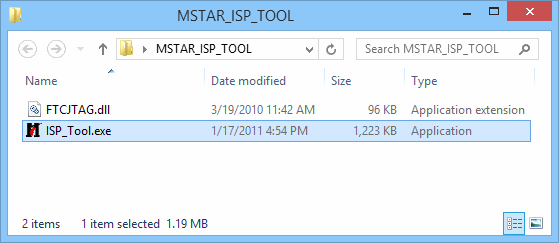
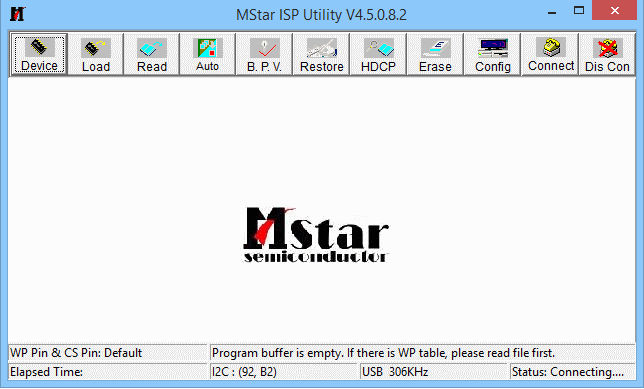
- You should see this screen appear:
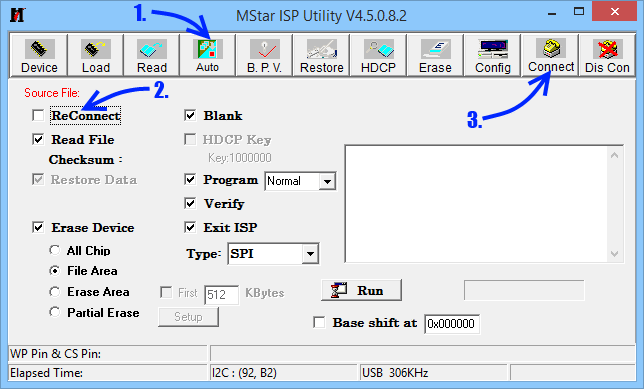
- First, click the “Auto” button.
Then disable the “Reconnect” checkbox.
Then click the “Connect” button.
- If your monitor is successfully detected, you should get a “Device Type” dialog popup:
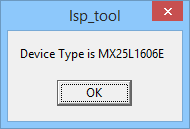
NOTE: If you do not get this message, go into your monitor’s service menu and then change “DVI HPD” to “On”. Next, try installing via a DVI cable instead of via VGA. - Click toolbar “Read” button at the top, then click file folder “Read” button.
Select the firmware .BIN file that you downloaded and unzipped (in Step 3).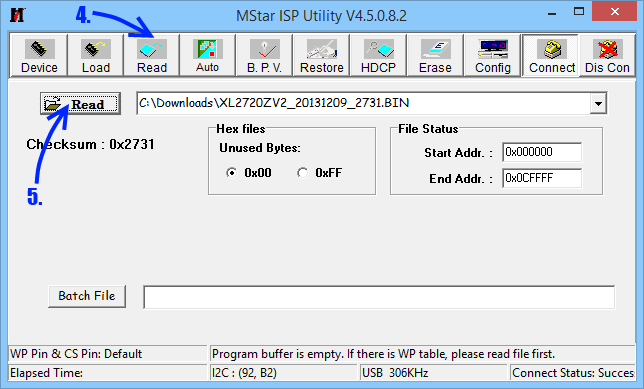
- Click toolbar “Auto” button, and then click “Run” button:
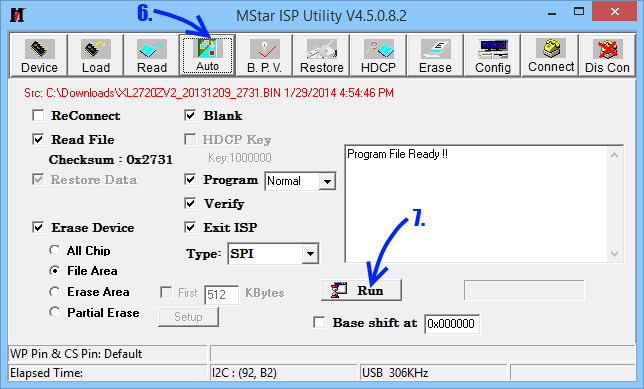
- Within a few minutes, your firmware should finish installing, with a green “PASS”.
Your BENQ Z-Series monitor will automatically reset itself, show a purple BENQ splash screen for a few seconds, and then finish powering up.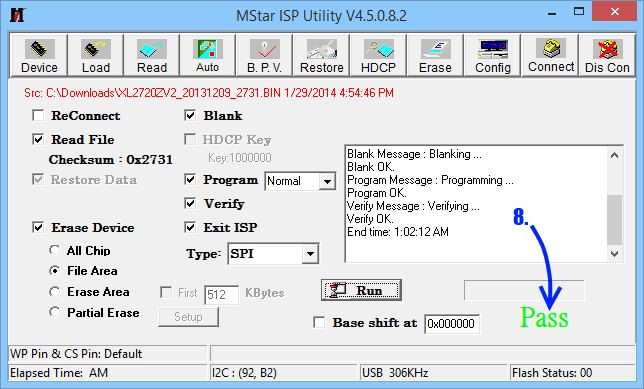
- If your upgrade went successfully, your monitor will begin flashing solid colors in a burn-in test. To turn this off, turn off this mode by press the ENTER button and then RIGHT button on your Z-Series monitor to turn off burn-in mode.
- OPTIONAL: If you want to do an additional verification that the firmware installed successfully, you may access the service menu of your BENQ Z-Series, to confirm. When finished, power cycle your monitor (off-on) to allow Strobe Utility to work.
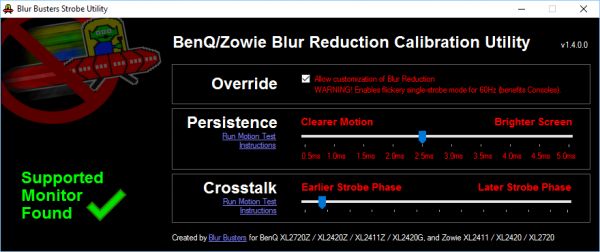
- Download and run Blur Busters Strobe Utility.
You should see “Supported Monitor Found” at the bottom-right corner of the window.
- Post your success reports and feedback in the Blur Busters Forums!
Additional Notes:
– Some units of MSTAR ISP that you purchase online, may also include a CD containing the firmware installer software (ISP Utility).
– If your monitor doesn’t appear to have upgraded (still says V001 instead of V002 in service menu, and Strobe Utility still says Old Firmware), repeat the Firmware upgrade while the Z-Series monitor is in Standby mode (off). This will require using a different display, while upgrading the BENQ Z-Series.
– Reports have been received that certain heuristic scanners (Webroot Security) is flagging the DLL file that came with MSTAR ISP, while Avast is happy with it. This appears to occur with both the download software, and the software included on CD.
Questions? Discuss at Blur Busters Forums: BENQ Blur Reduction.
For Those Who Have Not Purchased Monitor Yet
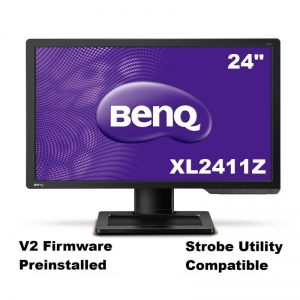
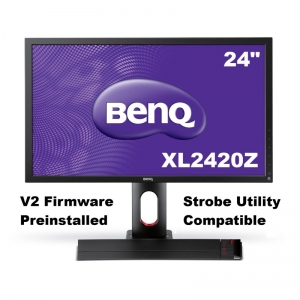
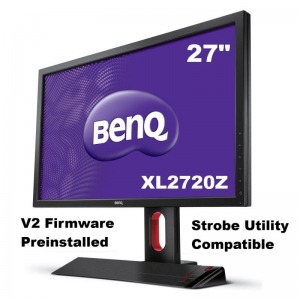
You can buy a BENQ monitor with new firmware preinstalled, so you don’t need to do the above complex steps. Most other online stores are still selling V1 firmware. To get immediate easy compatibility with Blur Busters Strobe Utility, you can get BENQ XL2411Z, XL2420Z or XL2720Z with firmware already guaranteed pre-installed: