
 Menu
Menu
G-SYNC Module
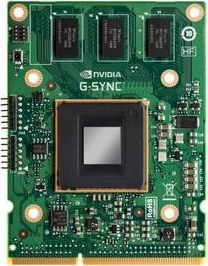 The G-SYNC module is a small chip that replaces the display’s standard internal scaler, and contains enough onboard memory to hold and process a single frame at a time.
The module exploits the vertical blanking interval (the span between the previous and next frame scan) to manipulate the display’s internal timings; performing G2G (gray to gray) overdrive calculations to prevent ghosting, and synchronizing the display’s refresh rate to the GPU’s render rate to eliminate tearing, along with the delayed frame delivery and adjoining stutter caused by traditional syncing methods.
G-SYNC Demo
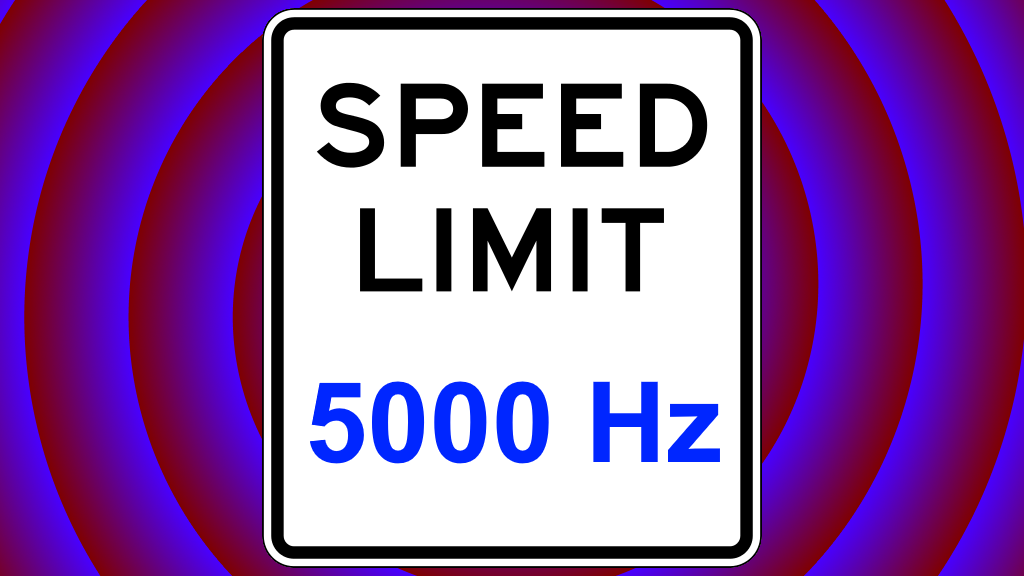
The below Blur Busters Test UFO motion test pattern uses motion interpolation techniques to simulate the seamless framerate transitions G-SYNC provides within the refresh rate, when directly compared to standalone V-SYNC.
NVIDIA Control Panel Retirement
As of NVIDIA driver version 610.47, the NVIDIA Control Panel has officially reached EOL:
“After 20 years of dedicated service, the classic NVIDIA Control Panel is officially retiring for Game Ready and Studio Drivers. For NVIDIA RTX PRO users, the NVIDIA Control Panel will continue to be supported until we have migrated professional features to the NVIDIA app
Existing installs of the NVIDIA Control Panel will remain on users’ systems, unless they perform a clean installation, and users who still need the NVIDIA Control Panel can continue to download it from the Microsoft Store, but we won’t be adding features, fixes, or other changes.”
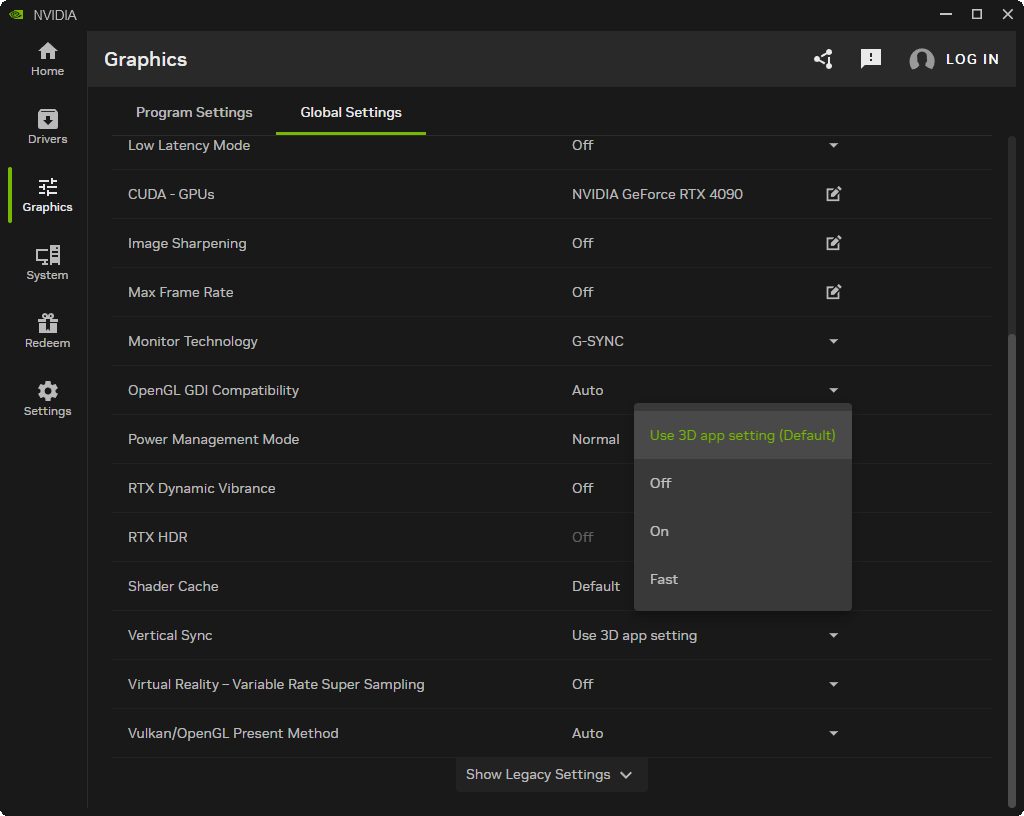
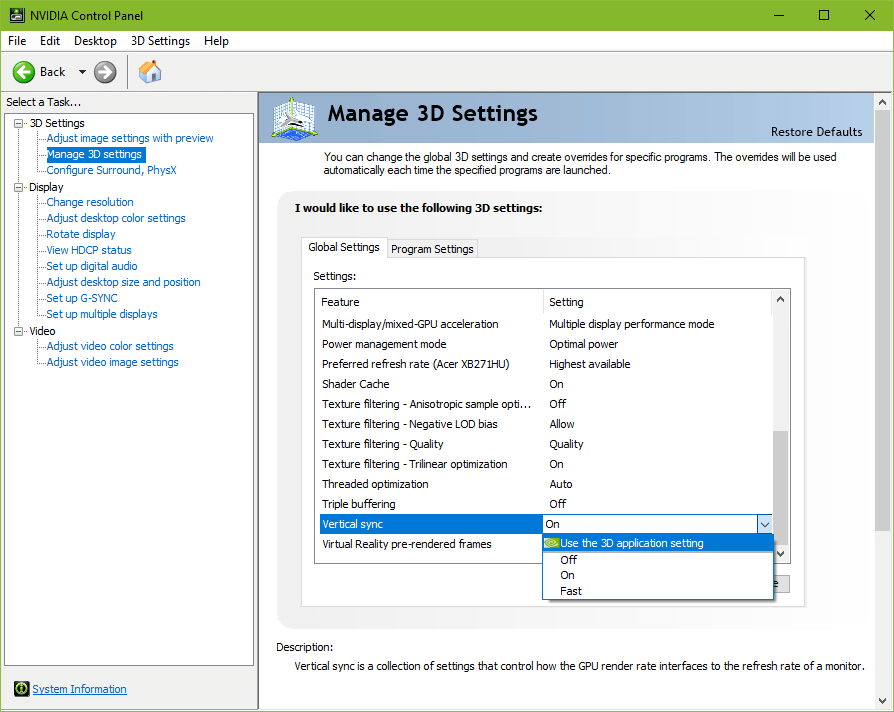
While the original NVIDIA Control Panel settings locations will be retained below, the NVIDIA App settings locations are now also included for a more up-to-date reference.
G-SYNC Activation
“Full screen” / “Enable for full screen mode” (exclusive fullscreen-type functionality only) is automatically selected when a supported display is connected to the GPU. If G-SYNC behavior is suspect or non-functioning, tick off, apply, tick on, and apply.
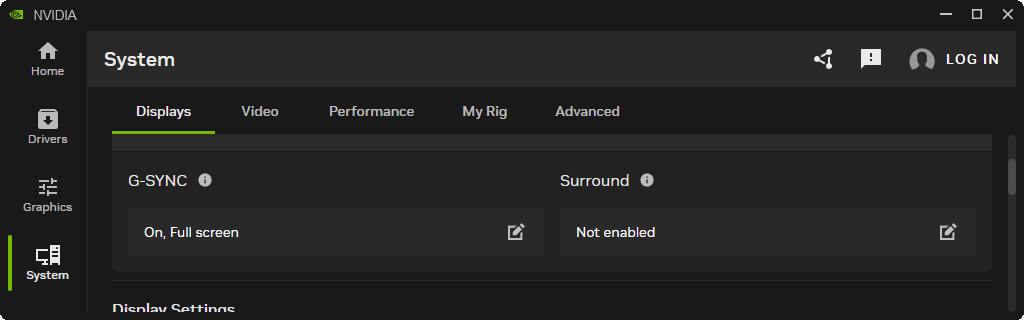
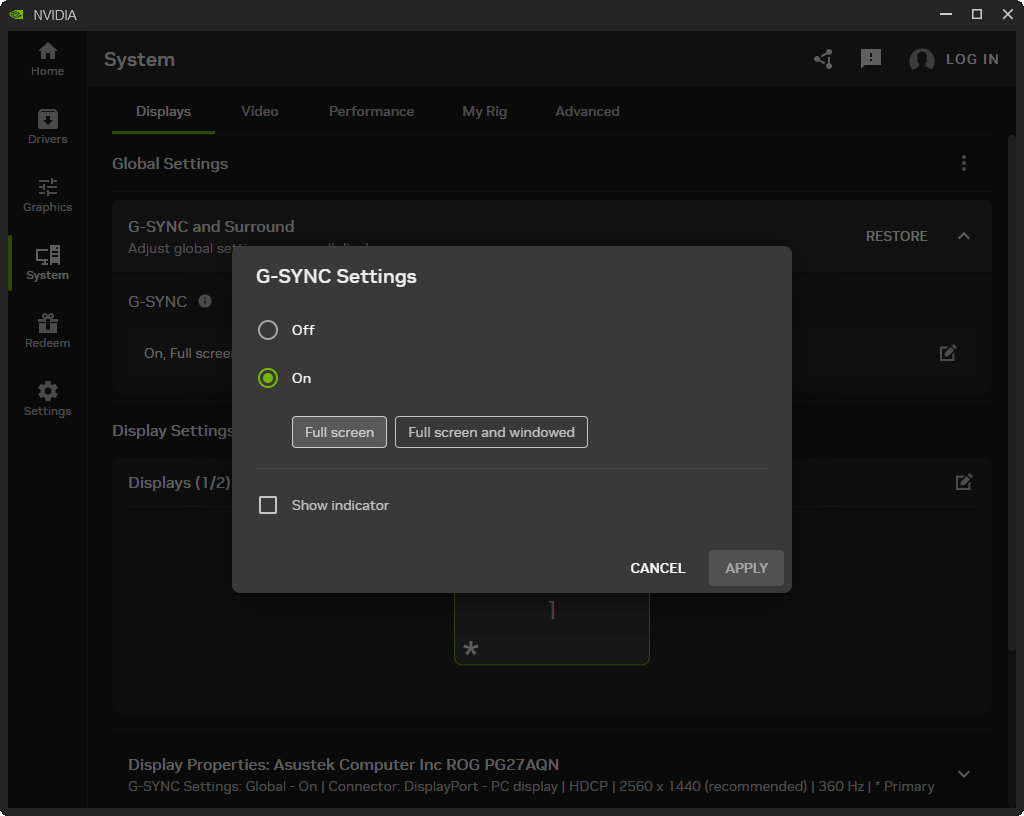
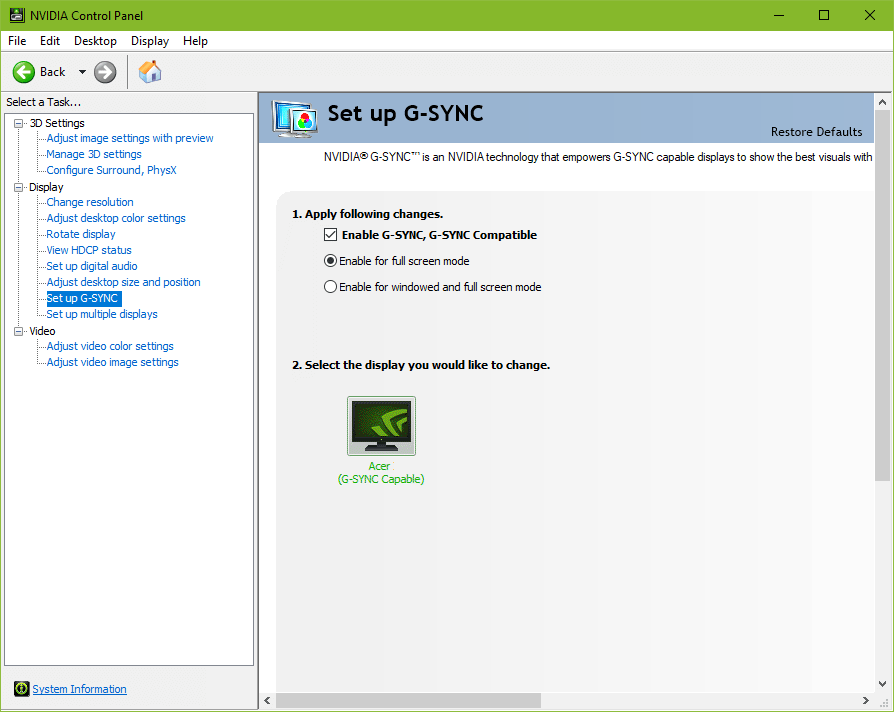
G-SYNC Windowed Mode
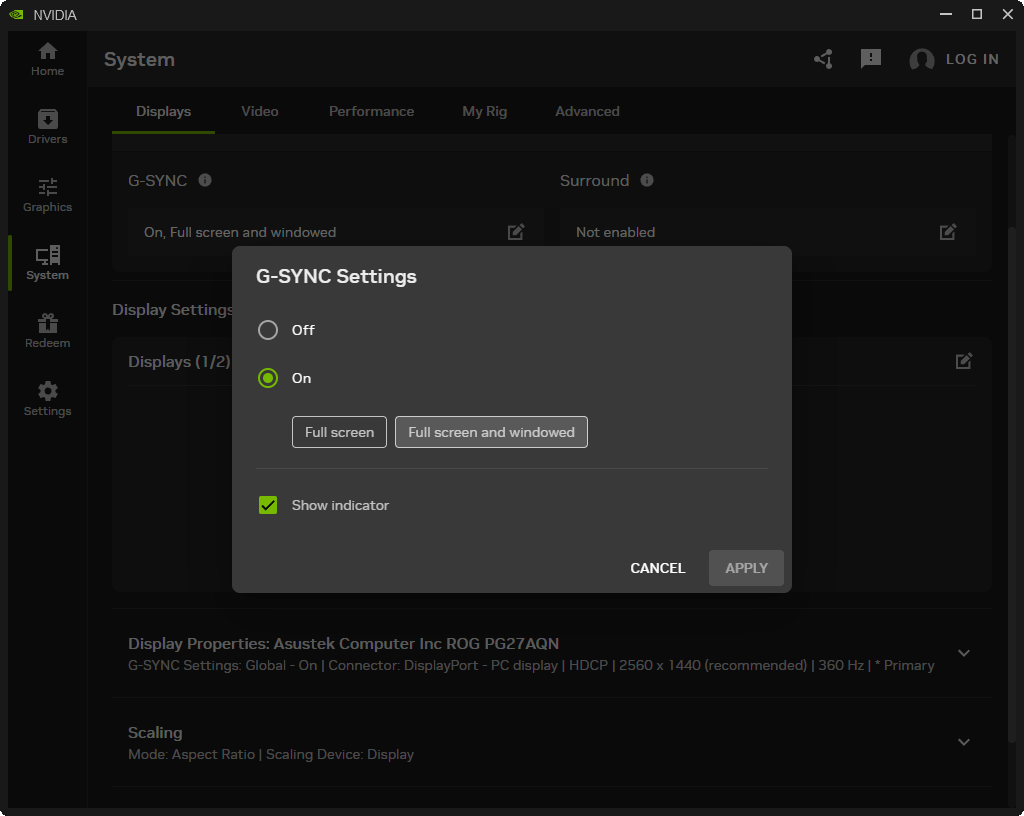
“Full screen and windowed” / “Enable for windowed and full screen mode” allows G-SYNC support for legacy windowed and borderless windowed modes. This option was introduced in a 2015 driver update, and by manipulating the DWM (Desktop Windows Manager) framebuffer, allows G-SYNC’s VRR (variable refresh rate) to synchronize to the focused window’s render rate; unfocused windows remain at the desktop’s fixed refresh rate until focused on.
G-SYNC only functions on one window at a time, and thus any unfocused window that contains moving content will appear to stutter or slow down, a reason why a variety of non-gaming applications (popular web browsers among them) include predefined NVIDIA profiles that disable G-SYNC support. As such, per-profile application of this mode is optimal vs. global. See Closing FAQ #5 for instructions.
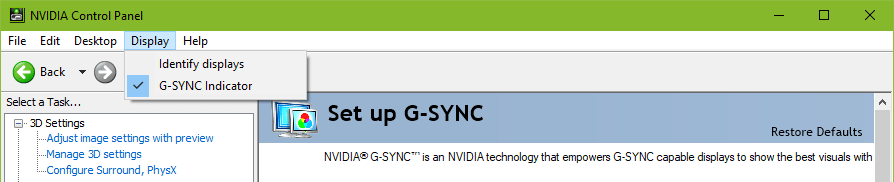
Note: this setting may require a game or system restart after application; “Show indicator” / “G-SYNC Indicator” can be enabled to verify it is working as intended.
G-SYNC Preferred Refresh Rate
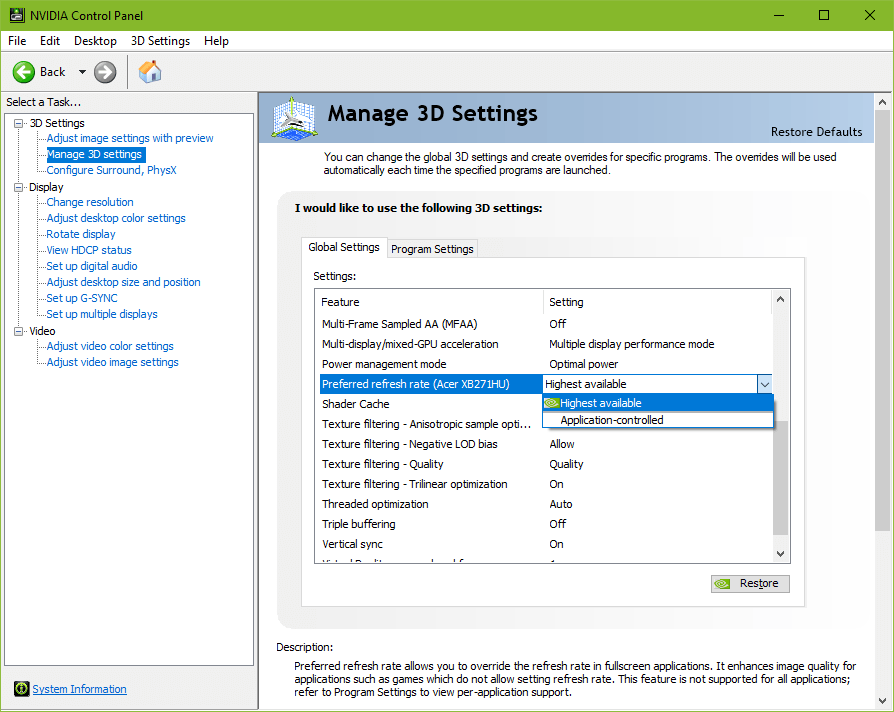
“Highest available” is automatically selected when G-SYNC is initially enabled, and overrides the in-game refresh rate selector (if present), defaulting to the highest supported refresh rate of the display. This is useful for games that don’t include a selector, and ensures the display’s native refresh rate is utilized.
“Application-controlled” adheres to the desktop’s current refresh rate, or defers control to games that contain a refresh rate selector.
Note: this setting only applies to games being run in exclusive fullscreen-type modes. For games being run in legacy borderless or windowed modes, the desktop always dictates the refresh rate.
NVIDIA App
Settings locationThe NVIDIA App does not expose the legacy “Preferred refresh rate” setting.
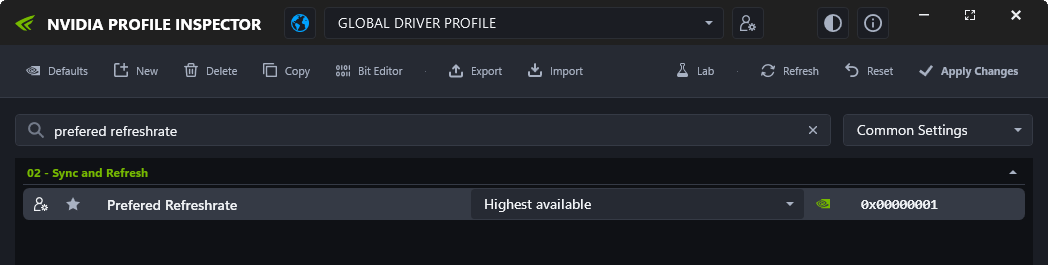
While it is no longer directly accessible in the app, like with the NVIDIA Control Panel, it is still automatically selected when G-SYNC is initially enabled, just internally, and can alternatively be accessed via the NVIDIA Profile Inspector (download here):

NVIDIA Control Panel
Settings location (legacy)
G-SYNC & V-SYNC
G-SYNC (GPU Synchronization) works on the same principle as double buffer V-SYNC; buffer A begins to render frame A, and upon completion, scans it to the display. Meanwhile, as buffer A finishes scanning its first frame, buffer B begins to render frame B, and upon completion, scans it to the display, repeat.
The primary difference between G-SYNC and V-SYNC is the method in which rendered frames are synchronized. With V-SYNC, the GPU’s render rate is synchronized to the fixed refresh rate of the display. With G-SYNC, the display’s VRR (variable refresh rate) is synchronized to the GPU’s render rate.
Upon its release, G-SYNC’s ability to fall back on fixed refresh rate V-SYNC behavior when exceeding the maximum refresh rate of the display was built-in and non-optional. A 2015 driver update later exposed the option.
This update led to recurring confusion, creating a misconception that G-SYNC and V-SYNC are entirely separate options. However, with G-SYNC enabled, the “Vertical Sync” option in the control panel no longer acts as V-SYNC, and actually dictates whether, one, the G-SYNC module compensates for frametime variances output by the system (which prevents tearing at all times. G-SYNC + V-SYNC “Off” disables this behavior; see G-SYNC 101: Range), and two, whether G-SYNC falls back on fixed refresh rate V-SYNC behavior; if V-SYNC is “On,” G-SYNC will revert to V-SYNC behavior above its range, if V-SYNC is “Off,” G-SYNC will disable above its range, and tearing will begin display wide.
Within its range, G-SYNC is the only syncing method active, no matter the V-SYNC “On” or “Off” setting.
Currently, when G-SYNC is enabled, the “Vertical Sync” entry is automatically set to “Use 3D app setting” / “Use the 3D application setting” which defers V-SYNC fallback behavior and frametime compensation control to the in-game V-SYNC option. This can be manually overridden by changing the “Vertical Sync” entry in the control panel to “Off,” “On,” or “Fast.”