
G-SYNC 101: Control Panel


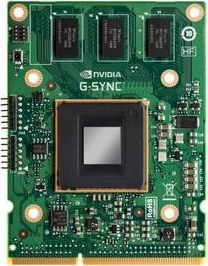
G-SYNC Module

The G-SYNC module is a small chip that replaces the display’s standard internal scaler, and contains enough onboard memory to hold and process a single frame at a time.

The module exploits the vertical blanking interval (the span between the previous and next frame scan) to manipulate the display’s internal timings; performing G2G (gray to gray) overdrive calculations to prevent ghosting, and synchronizing the display’s refresh rate to the GPU’s render rate to eliminate tearing, along with the delayed frame delivery and adjoining stutter caused by traditional syncing methods.

G-SYNC Demo

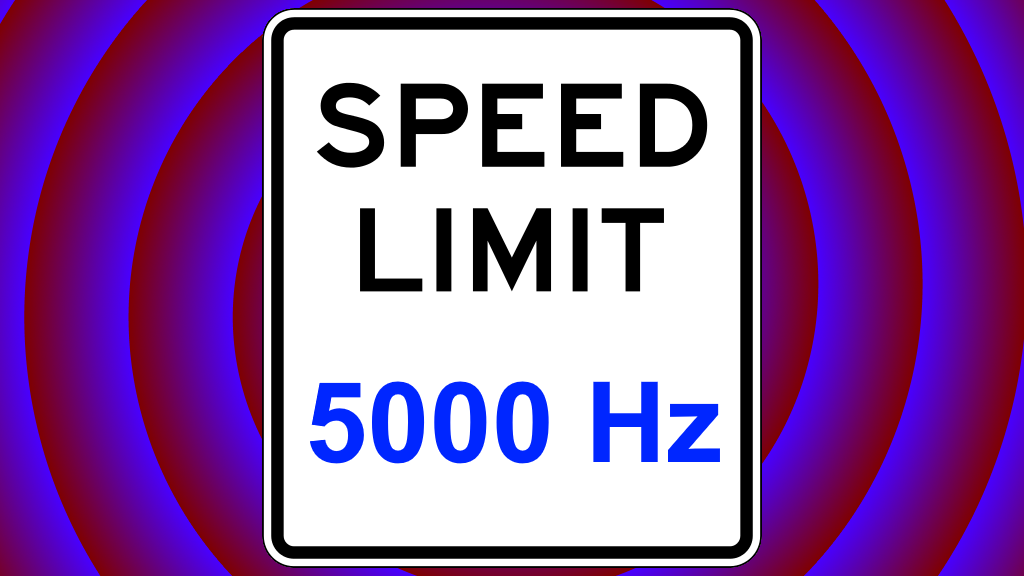
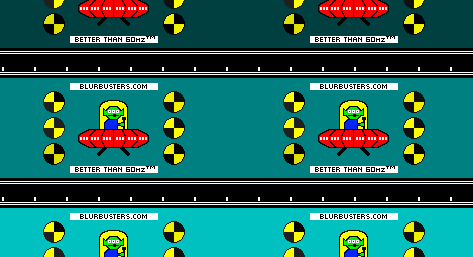
The below Blur Busters Test UFO motion test pattern uses motion interpolation techniques to simulate the seamless framerate transitions G-SYNC provides within the refresh rate, when directly compared to standalone V-SYNC.

NVIDIA Control Panel Retirement

As of NVIDIA driver version 610.47, the NVIDIA Control Panel has officially reached EOL:

“After 20 years of dedicated service, the classic NVIDIA Control Panel is officially retiring for Game Ready and Studio Drivers. For NVIDIA RTX PRO users, the NVIDIA Control Panel will continue to be supported until we have migrated professional features to the NVIDIA app

Existing installs of the NVIDIA Control Panel will remain on users’ systems, unless they perform a clean installation, and users who still need the NVIDIA Control Panel can continue to download it from the Microsoft Store, but we won’t be adding features, fixes, or other changes.”

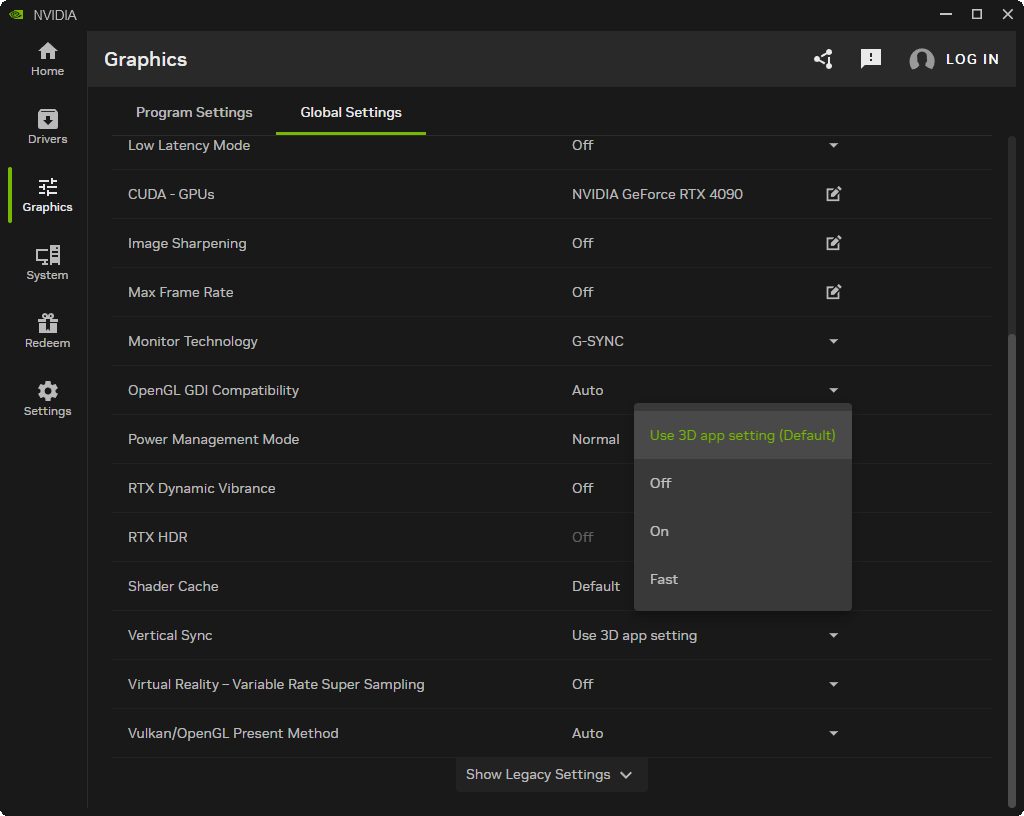
While the original NVIDIA Control Panel settings locations will be retained below, the NVIDIA App settings locations are now also included for a more up-to-date reference.

G-SYNC Activation

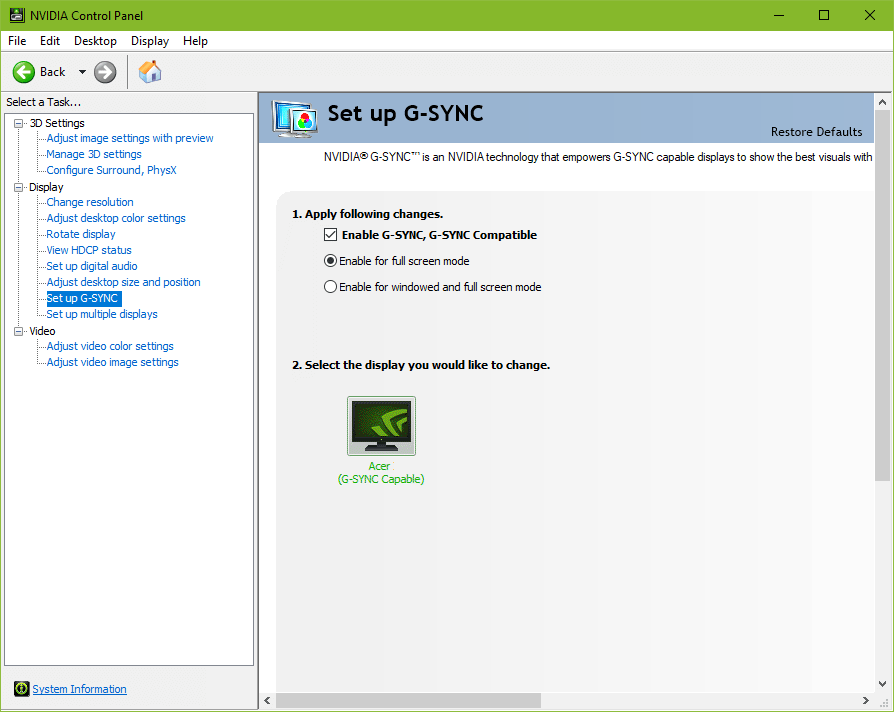
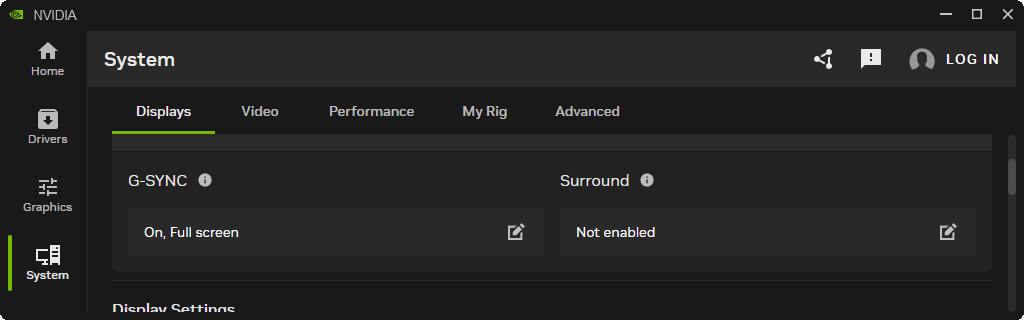
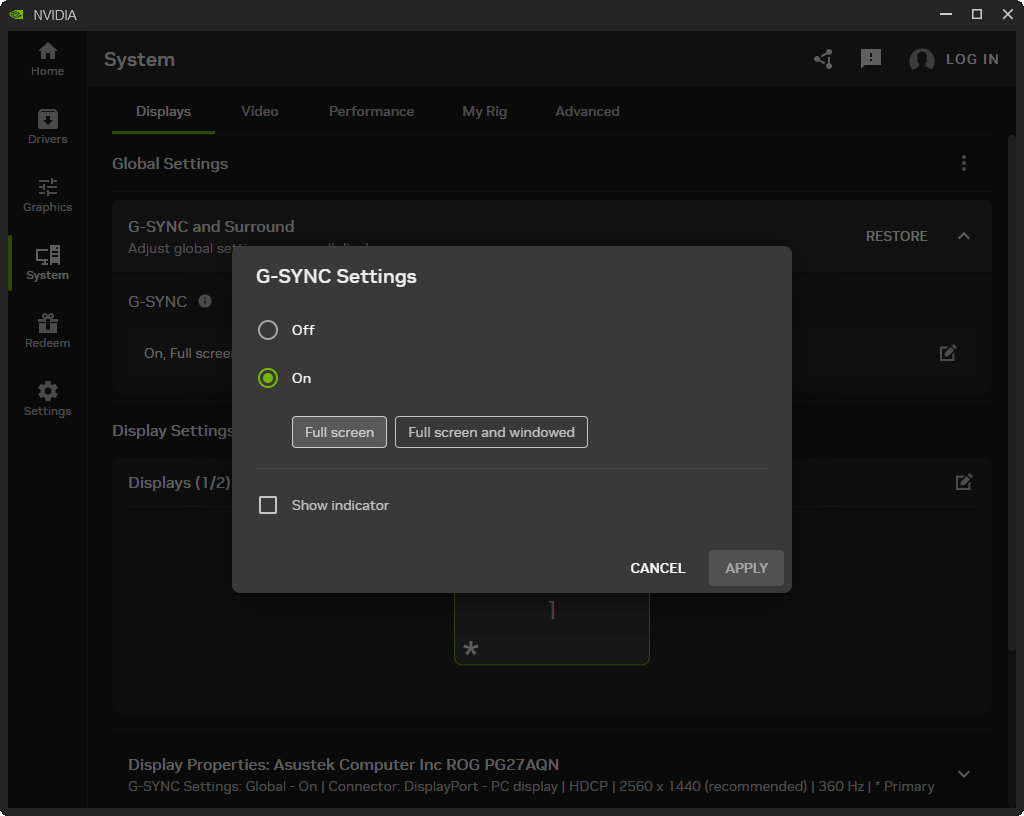
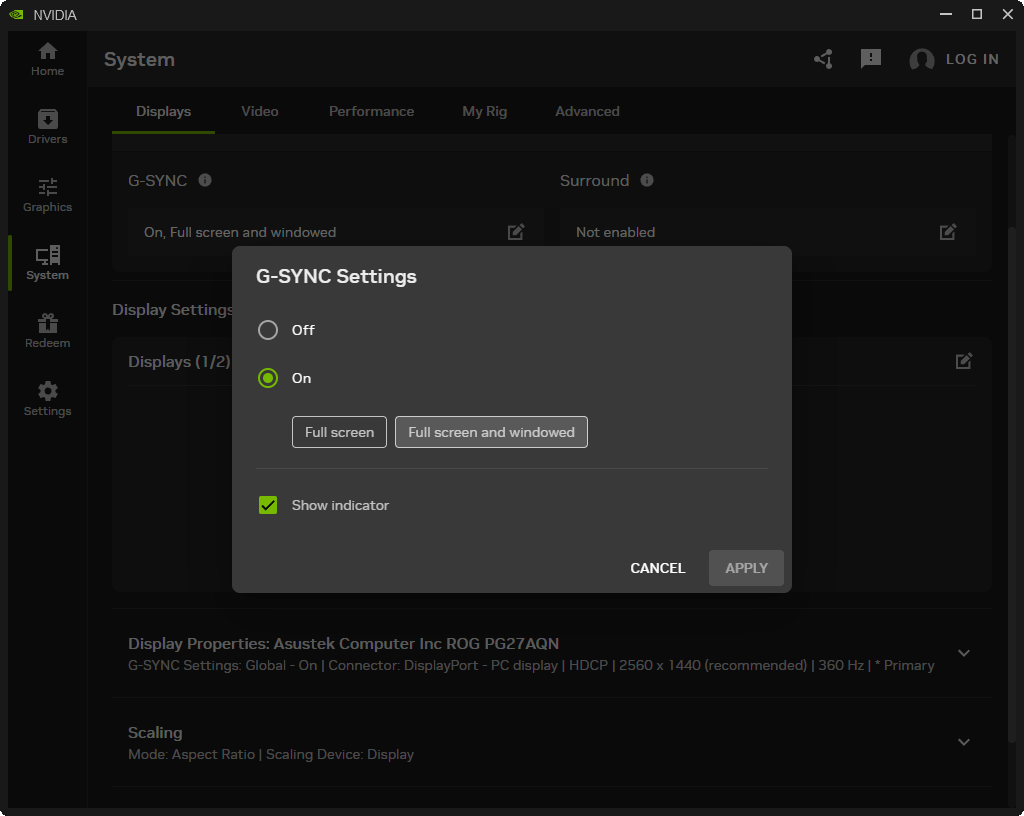
“Full screen” / “Enable for full screen mode” (exclusive fullscreen-type functionality only) is automatically selected when a supported display is connected to the GPU. If G-SYNC behavior is suspect or non-functioning, tick off, apply, tick on, and apply.
G-SYNC Windowed Mode

“Full screen and windowed” / “Enable for windowed and full screen mode” allows G-SYNC support for legacy windowed and borderless windowed modes. This option was introduced in a 2015 driver update, and by manipulating the DWM (Desktop Windows Manager) framebuffer, allows G-SYNC’s VRR (variable refresh rate) to synchronize to the focused window’s render rate; unfocused windows remain at the desktop’s fixed refresh rate until focused on.

G-SYNC only functions on one window at a time, and thus any unfocused window that contains moving content will appear to stutter or slow down, a reason why a variety of non-gaming applications (popular web browsers among them) include predefined NVIDIA profiles that disable G-SYNC support. As such, per-profile application of this mode is optimal vs. global. See Closing FAQ #5 for instructions.

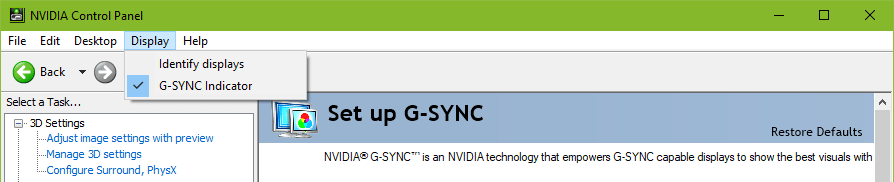
Note: this setting may require a game or system restart after application; “Show indicator” / “G-SYNC Indicator” can be enabled to verify it is working as intended.
G-SYNC Preferred Refresh Rate

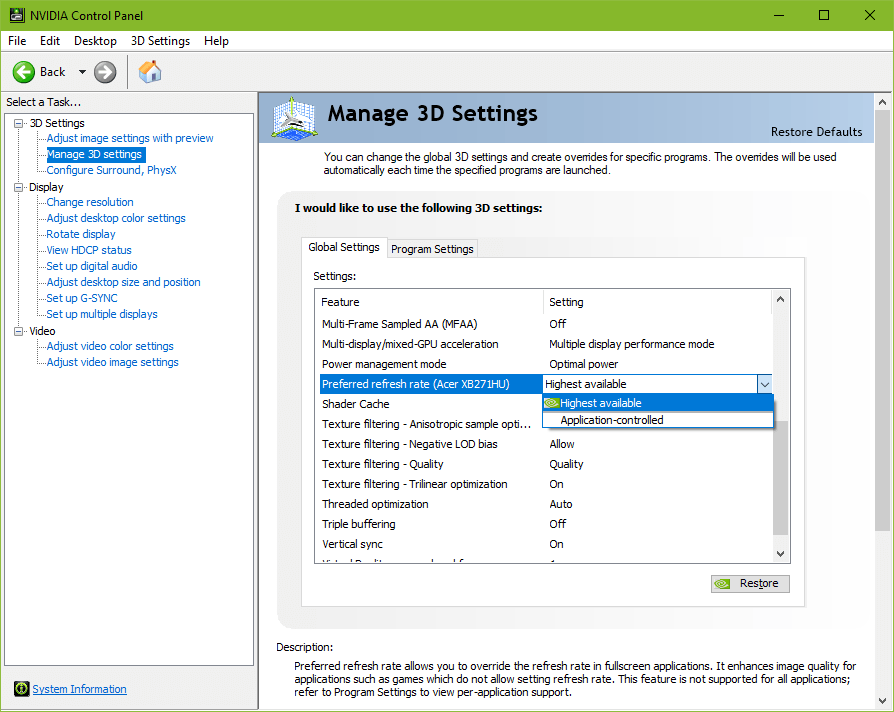
“Highest available” is automatically selected when G-SYNC is initially enabled, and overrides the in-game refresh rate selector (if present), defaulting to the highest supported refresh rate of the display. This is useful for games that don’t include a selector, and ensures the display’s native refresh rate is utilized.

“Application-controlled” adheres to the desktop’s current refresh rate, or defers control to games that contain a refresh rate selector.

Note: this setting only applies to games being run in exclusive fullscreen-type modes. For games being run in legacy borderless or windowed modes, the desktop always dictates the refresh rate.

  • NVIDIA App
    Settings location

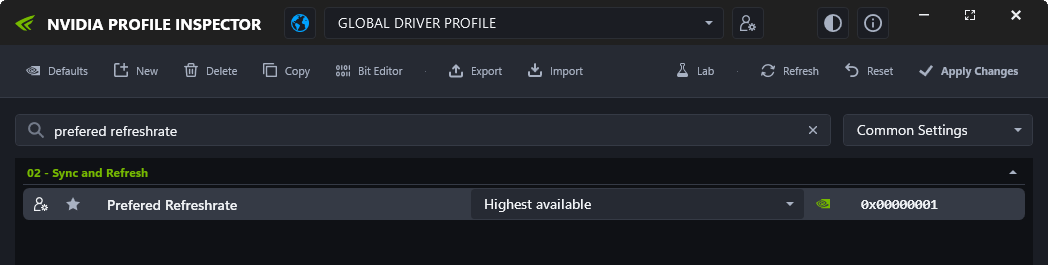
    The NVIDIA App does not expose the legacy “Preferred refresh rate” setting.

    While it is no longer directly accessible in the app, like with the NVIDIA Control Panel, it is still automatically selected when G-SYNC is initially enabled, just internally, and can alternatively be accessed via the NVIDIA Profile Inspector (download here):
    Blur Buster's G-SYNC 101: Control Panel

  • NVIDIA Control Panel
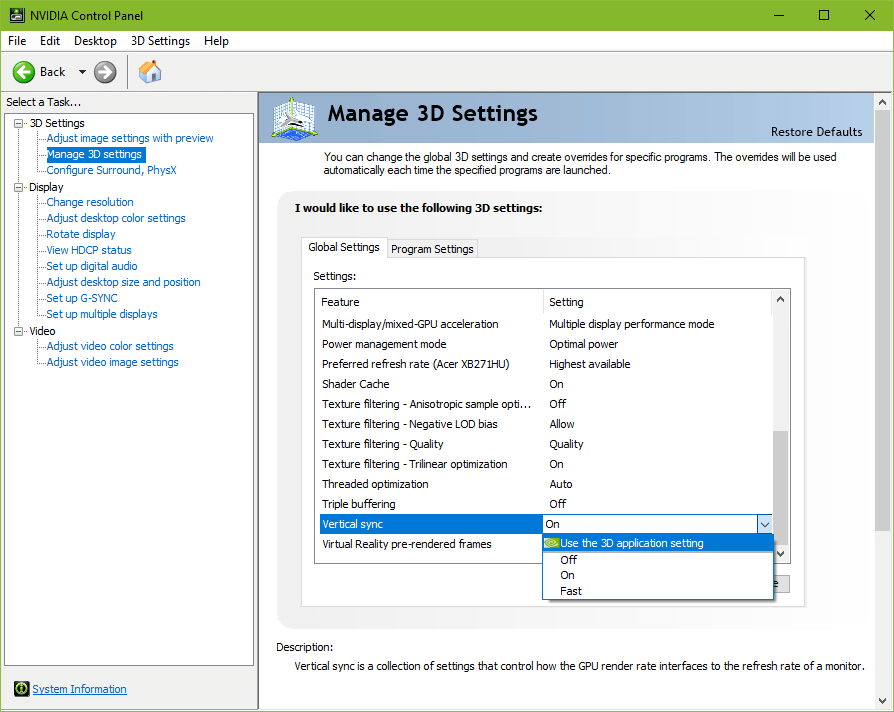
    Settings location (legacy)
G-SYNC & V-SYNC

G-SYNC (GPU Synchronization) works on the same principle as double buffer V-SYNC; buffer A begins to render frame A, and upon completion, scans it to the display. Meanwhile, as buffer A finishes scanning its first frame, buffer B begins to render frame B, and upon completion, scans it to the display, repeat.

The primary difference between G-SYNC and V-SYNC is the method in which rendered frames are synchronized. With V-SYNC, the GPU’s render rate is synchronized to the fixed refresh rate of the display. With G-SYNC, the display’s VRR (variable refresh rate) is synchronized to the GPU’s render rate.

Upon its release, G-SYNC’s ability to fall back on fixed refresh rate V-SYNC behavior when exceeding the maximum refresh rate of the display was built-in and non-optional. A 2015 driver update later exposed the option.

This update led to recurring confusion, creating a misconception that G-SYNC and V-SYNC are entirely separate options. However, with G-SYNC enabled, the “Vertical Sync” option in the control panel no longer acts as V-SYNC, and actually dictates whether, one, the G-SYNC module compensates for frametime variances output by the system (which prevents tearing at all times. G-SYNC + V-SYNC “Off” disables this behavior; see G-SYNC 101: Range), and two, whether G-SYNC falls back on fixed refresh rate V-SYNC behavior; if V-SYNC is “On,” G-SYNC will revert to V-SYNC behavior above its range, if V-SYNC is “Off,” G-SYNC will disable above its range, and tearing will begin display wide.

Within its range, G-SYNC is the only syncing method active, no matter the V-SYNC “On” or “Off” setting.

Currently, when G-SYNC is enabled, the “Vertical Sync” entry is automatically set to “Use 3D app setting” / “Use the 3D application setting” which defers V-SYNC fallback behavior and frametime compensation control to the in-game V-SYNC option. This can be manually overridden by changing the “Vertical Sync” entry in the control panel to “Off,” “On,” or “Fast.”

3852 Comments For “G-SYNC 101”

This site uses Akismet to reduce spam. Learn how your comment data is processed.

Sort by:   newest | oldest | most liked
Dan313
Member
Dan313

Hi, i have a 144 Hz Monitor with G-Sync activated. Does it make sense to play with 240 Fps, although my Monitor has a lower refresh rate than my fps are? For me, it feels more smooth but i don´t know if that is just my imagination

L.P.
Member
L.P.

Hi, I have another question which I couldn’t find an answer for.
I’m playing a game which has built in fps cap which caps automatically at 300fps (can be adjusted in-game by using it’s console). Since one of the latest updates of nvidia cp. there is a feature added “max frame rate”. Now my question is what’s the best thing to cap with, the in-game fps cap or nvidia control panel fps cap ? And if it’s nvidia cp. fps cap according to you, in that case should I turn off in-game fps cap ?
I’m asking this because of what I do is next, I use nvidia cap feature and cap my fps to 237 (240hz monitor, g-sync etc.. / no vsync). So this means that my fps cap is done for the particular game. Now I start the game and the configuration of the game also automatically caps to 300fps, and so I type in console of the game “fps_max 999” to kind off disable it (every time I start the game).
The thing is that I don’t understand if it’s a good idea because even if I leave the in-game fps limiter at 300, it shows 237 like adjusted in nvidia cp and even if I don’t leave it like that and put the in-game fps to 999 (like showed above here) , it still shows 237fps like adjusted in nvidia cp. So you would think “what’s the problem then?” The problem is that I don’t know if nvidia cp feature (fps limiter) is picking frames from the 300 in-game limited frames which are provided by game or is it picking from the 500,600 frames which I receive from the game after using the in-game console command “fps_max 999” for unlimited in-game frames.
Thanks in advance, hope it’s not confusing.

Kyanite
Member
Kyanite

If you’re playing with your physical refresh rate set to 240Hz, but only getting, say, 100 FPS, G-SYNC will refresh the display 100 times per second, but still deliver (scan in) individual frames at the full speed of the 240Hz physical refresh rate.

I have never seen someone say that, the 240Hz refresh rate is still being used when G-SYNC lowers the refresh of the monitor to 100fps? Is that true?

TheHighComposer
Member
TheHighComposer

I have a few questions for the expert…

Remainder of comment hidden for length (click to view)

I’m on my way to building my first high end gaming PC when this years new hardware is released. I want to game at 1080P and use a 240hz monitor to get high frame rates (ASUS ROG Swift PG258Q 24.5) I’ve literally read all of the information under the G-SYNC tab trying to figure out a potential problem I have thought of while trying to absorb all the variables. I want a 240hz monitor in order to give myself the Ability to play more competitively on games at the 240-500 fps marks like cs:go once I build my new rig. However on games like Battlefield I’ve watched game play videos/tests where the game is set to all low settings at 1080p using a 2080ti and a I9900ks and the frame rate goes from 125 fps on some maps and up to the 200 range at 144hz on others. My new PC will have stronger (future) hardware so performance will be different……….So, should I leave the refresh rate at 240hz and let G-Sync just reduce screen tearing/artifacts while riding the fps drops? OR should I reduce the monitors refresh rate to a setting closer to the stable fps and use the lock ~-3fps + G-Sync method? I aim to use the configuration that reduces input lag as much as possible to give me a competitive edge when I need. From what I’ve gathered today on this topic is that the higher my fps, the less input lag will occur which is why one option is to leave the refresh rate at max in order to not limit the fps I can physically see on screen while also reducing input lag because of the high refresh rate/higher fps. Though this method will cause a slight input lag from g sync eliminating screen tearing in frames produced by my system that are lower than my refresh rate . The monitor I want has the available refresh rates of 60hz, 100hz, 120hz, 144hz ,200hz and 240hz, giving me the option to pick a refresh rate that is closer to the performance my system is currently running any given game. Say I select 144hz and my frame rate is usually very high above like 180… if no screen tearing occurs at the average fps, that would be great at the benefit of reduced input lag with v- sync off. BUT! my refresh rate is now lower, yielding its own increase in input lag. This beast of a PC I’m soon to build will definitely preform outstandingly with current gen games and some new games as I’m buying the newest releases of hardware in 2020 so frame rates have yet to be determined but should easily over preform in most cases. But there will come a time where ill want to play a graphically demanding game that won’t hit the 240hz mark for what ever reason. Say I wanted to play a Campaign or something on ultra settings. This is where I start to get confused… 240hz decreases input lag and allows me to physically see more frames per second even if they are below 240fps. Now just turn on g sync, to get rid of lower fps screen tearing. Now Say my fps is half of 240hz because I have all of my settings on ultra. Having never played any higher refresh rate than 60hz I don’t have any experience on how much you can get away with with such a large difference between hz/fps. Will leaving my refresh rate on max + g sync provide a better experience/ smoother game play even though my frames are lower or way below a particular refresh rate?… or should I assign the highest refresh rate closest to my stable fps while also using g sync in case of taring. What about if I wanted to play BATTLEFIELD on ultra online while reducing input lag/screen tearing for a shooters advantage… what would be the best strategy to reduce input lag even though my frames are reduced because of ultra settings, reducing my FPS below 240hz most likely. Can I just ride the drops in fps with g sync on if they aren’t too drastic? At what point should I reduce my refresh rate if the frames are way lower than 240hz? Should I? if so, do I lock my fps slightly below my refresh rate + g sync? From my understanding, increasing input lag from the lowered refresh rate, lower frames and screen tearing that g sync stops. The other way being, reduce my refresh rate,
turn on g sync and let the frame rate go as high as it can hoping tares aren’t produced, reducing some input lag by not locking frames, increasing frame rate…. but causes screen tearing potentially hahah! Achieving max reduced input lag and the highest frames/hz is easy to plan ahead for… playing a game like assassins creed on ultra and enjoying the detail, easy to figure out and not fuss about… but trying to get the best balance between reducing input lag while playing on max settings for streaming content has a few equations I cant find advise on. I understand how g sync and v sync work and when to use them or not use them… I just lack some experience/ knowledge that I could use a little advise on. Sorry for the paragraph…. I just want to know what I’m getting into when buying a $600 dollar monitor that has technology that’s new to me.

Kapucha
Member
Kapucha

Thanks for this great article. I think this is the best article in whole internet for G-Sync topic. I just want to ask question. My monitor isn’t listed on Nvidia G-Sync Compatible monitors (ASUS XG49VQ). It is FreeSync and when I enable G-Sync in NVCP then this monitor blinks when there is less than 60FPS in games. So i decided to switch off G-Sync in NVCP and set Fixed Refresh Rate. My question is. How should I set V-Sync and FPS Limiter for Fixed Refresh Rate monitor without G-Sync? My goal is to set 60Hz so the GPU will be not overloaded too much because it can easy hit to 200FPS or even 300FPS. My goal is to learn how to setup V-Sync. Is it ok just to enable V-Sync without any FPS limiter in this case? Is FPS Limiter useful when we have Static Refresh Rate monitor?

wpDiscuz